Filters & Time Range
Filters control what data your widgets display. Set them globally for the entire dashboard or override them on individual widgets for fine-grained control.
Global filters
Click the Filters button in the toolbar to open the global filters dialog. Changes here apply to all widgets that do not have custom overrides.
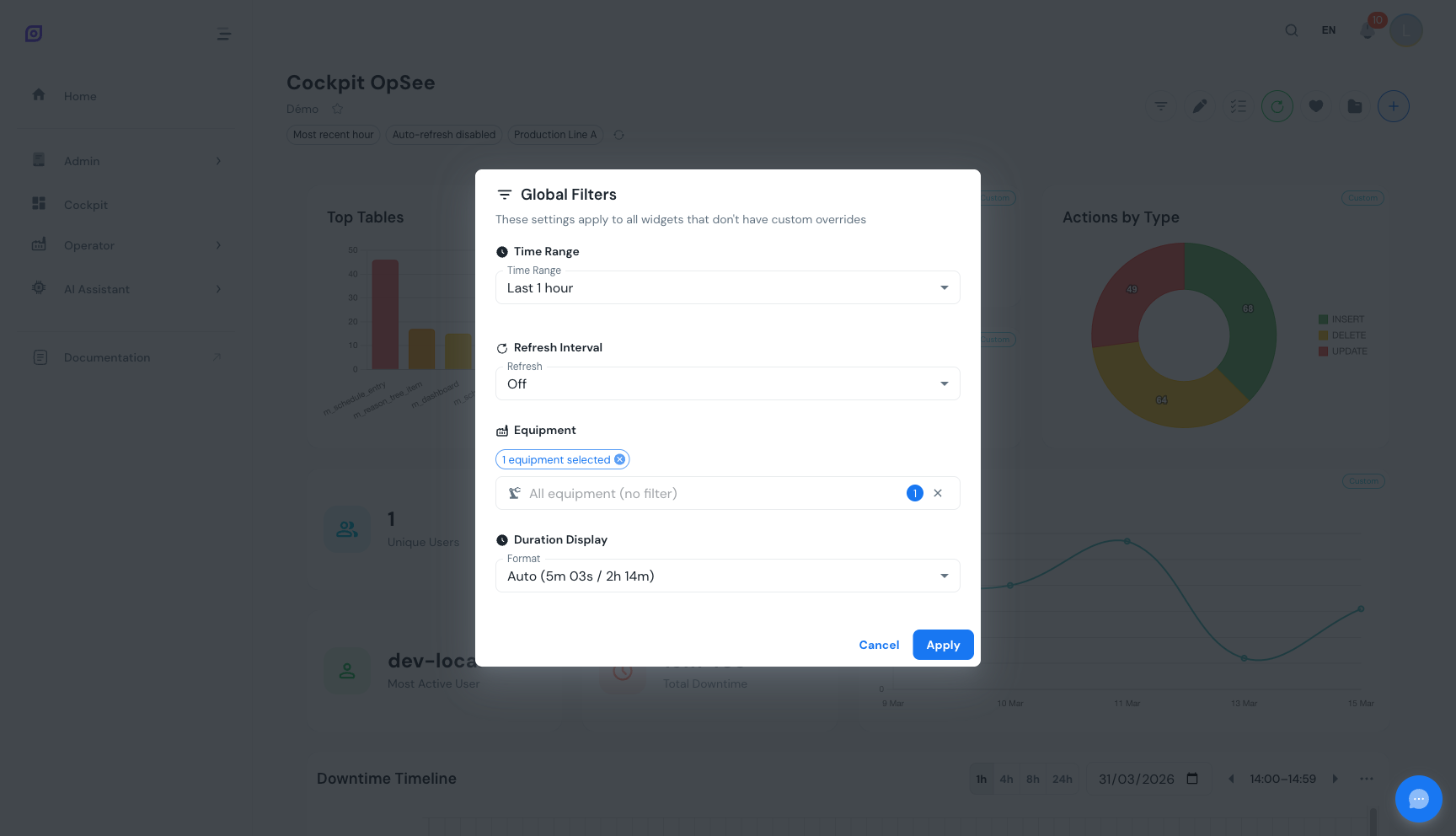 The global filters dialog with four sections: time range, refresh interval, equipment selection, and duration format.
The dialog has four sections, described below. Click Apply to commit your changes.
Time range presets
Select a preset to quickly define the time window for all widgets.
| Preset | Period |
|---|---|
| Today | Midnight to now |
| Yesterday | Previous full day (00:00 to 23:59) |
| This Week | Monday 00:00 to now |
| Last Week | Previous full week (Mon-Sun) |
| 7d | Last 7 days |
| 30d | Last 30 days |
| 90d | Last 90 days |
Custom time range
Select Custom at the bottom of the preset dropdown to switch to absolute mode. Two date-time pickers appear for the start and end dates. Use this when you need to analyze a precise production window, such as a specific shift or incident period.
Equipment filter
Select one or more equipment units from the hierarchical tree. Parent nodes toggle all their children with an indeterminate state. The search field narrows the tree to matching names, auto-expanding parent nodes.
Widgets marked "Requires Equipment" in the widget reference need at least one equipment unit selected to display data. Without selection, they show a configuration prompt.
Refresh interval
Control how often all widgets reload their data automatically.
| Interval | Use case |
|---|---|
| Off | Manual refresh only (click the refresh button) |
| 10s | Real-time monitoring of active events |
| 15s | Live production tracking |
| 30s | Default -- balanced between freshness and server load |
| 60s | Background monitoring |
| 120s | Wall-mounted displays with moderate refresh |
| 300s | Low-priority overview dashboards |
Duration display format
Choose how time durations appear across all duration-based widgets (Total Downtime, MTTR, MTBF).
| Format | Example Output |
|---|---|
| Auto | Picks the best unit automatically (e.g., "2h 15m" or "45s") |
| Full | 2h 15m 30s |
| Hours | 2.26h |
| Minutes | 135.5min |
| Seconds | 8130s |
Force refresh
Click the refresh button in the active filters bar to immediately refresh all widgets, regardless of the auto-refresh timer. This is useful when you know data has changed (e.g., you just logged a downtime reason) and don't want to wait for the next auto-refresh cycle.
Per-widget overrides
Any widget can pin its own time range, equipment selection, refresh interval, or duration format instead of following the global filter bar -- useful when you want one widget to show today's data while another shows the last 30 days on the same dashboard. Only the fields a widget actually uses are offered: a KPI that never renders a duration, for instance, has no duration-format override to set.
Opening widget filters in view mode
Hover a widget card and a filter button appears in its header, even outside edit mode -- overrides don't require entering edit mode at all. Click it to open a small menu:
- Widget filters... opens the same settings used to pin time range, equipment, refresh, or duration format for that widget, when the widget currently follows the dashboard
- Follow dashboard filters replaces the first item once the widget has at least one override, and resets every overridden field back to inherit in one click
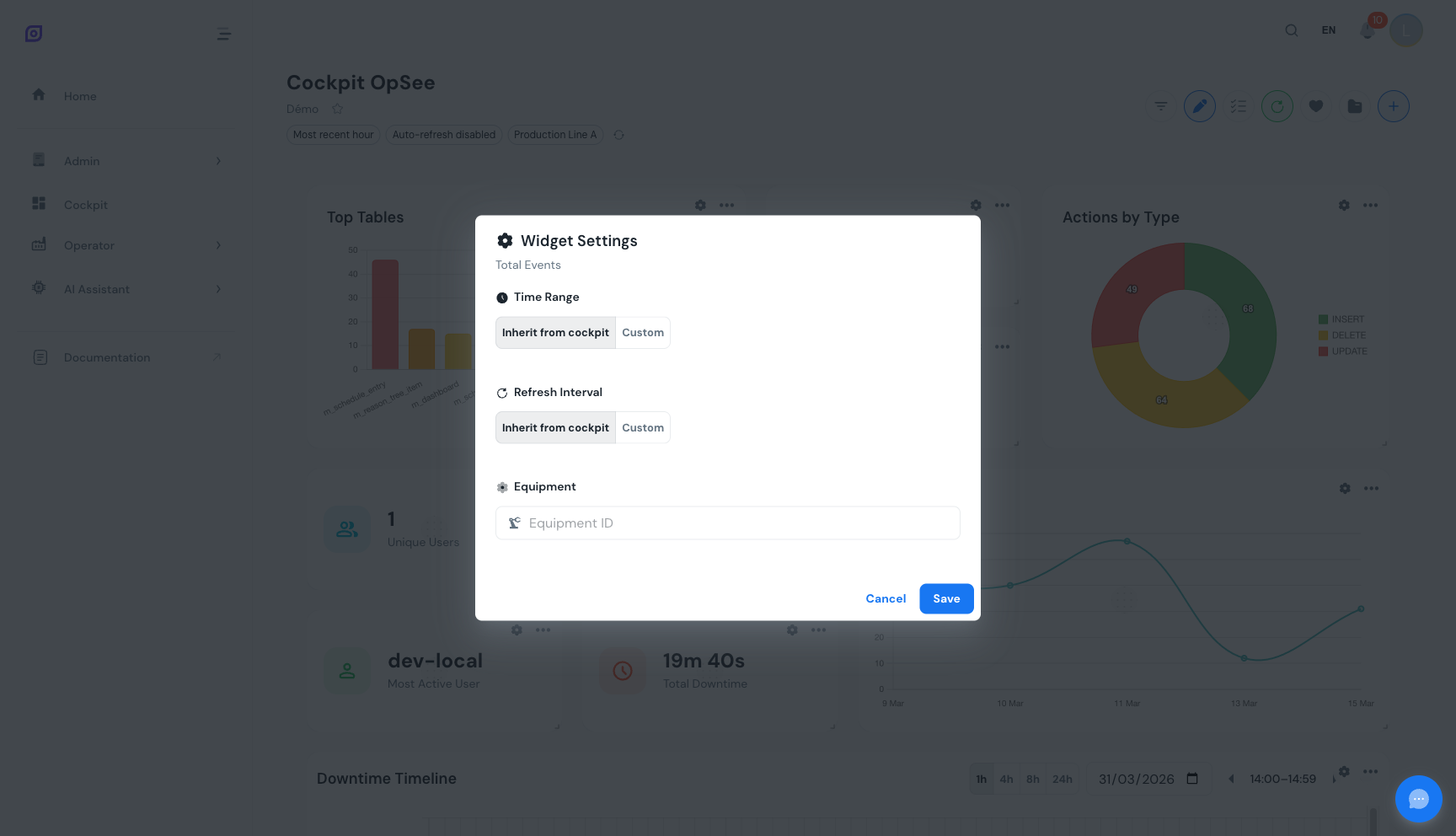 The widget settings dialog. Override time range, equipment, refresh interval, or duration format for a single widget.
Override chips
A widget with one or more overrides shows a small chip under its title for each overridden field (for example "Time: Custom" or "Equipment: 3 selected") -- in both view mode and edit mode. Chips are interactive:
- Click a chip to reopen the widget's filter settings on that field
- Click the ✕ on a chip to revert just that one field back to inheriting from the dashboard, leaving any other overrides on the widget untouched
 Override chips on a widget card. Click a chip to edit it, or its ✕ to revert that field to the dashboard's setting.
The "N widgets override" badge
The global filter bar shows a badge whenever at least one widget on the dashboard has an override, reading "1 widget overrides" or "N widgets override". Click it to open a popover listing every overriding widget together with the fields it has pinned. From the popover you can:
- Reset a single row to make that widget follow the dashboard again
- Reset all to clear every widget's overrides in one action
This is the fastest way to audit which widgets have drifted from the dashboard filters and bring them back in line.
Reset from the header and from select mode
Two more ways to fall back to the dashboard filters exist outside the badge popover:
- Header overflow menu -- "All widgets follow dashboard filters": resets every widget on the dashboard in one click, regardless of how many override
- Select mode: select a subset of widgets, then use the reset action in the selection toolbar to make only the selected widgets follow the dashboard filters, leaving the rest of the dashboard untouched
:::info Ephemeral until you save Setting an override, reverting a chip, or resetting widgets (one, several, or all) only changes the in-memory dashboard state -- exactly like moving a widget or changing a color. Nothing is written back until you click Save or Update in the toolbar. Reload without saving and the dashboard reverts to what was last persisted. :::
Filter inheritance
Each of the four filter fields inherits or overrides independently, per widget:
| Field | Inherit | Override |
|---|---|---|
| Equipment | Uses the dashboard's equipment selection | Pins its own equipment (single unit or a different set of units) |
| Time range | Uses the dashboard's preset or custom window, re-resolved on every refresh tick | Pins a custom window, or a relative preset anchored to "now" independent of the dashboard's window |
| Refresh interval | Reloads on the dashboard's auto-refresh cadence | Reloads on its own cadence, including "Off" for a widget you never want to auto-refresh |
| Duration format | Renders durations in the dashboard's chosen format | Renders durations (Auto/Full/Hours/Minutes/Seconds) in its own format |
Widgets inherit global filters by default. When you set a custom override on a widget for one field, only that field stops following the global setting -- the others keep inheriting until you override them too.
Changing global filters does not affect fields that a widget has overridden. To make a widget follow global filters again, use its view-mode filter button, revert the individual chip, or reset it from the override badge popover, the header overflow menu, or select mode -- see above.
Next steps
- Save your filtered dashboard -- persist filters as part of a named configuration
- Customize widget appearance -- change colors, icons, and data labels
Prerequisites
- Cockpit Overview
- Introduction: get the overall picture of OpSee
Related
- OEE Fundamentals
- Production: complementary module