Customization & Bulk Operations
Personalize each widget's look and use bulk operations to manage multiple widgets efficiently.
Widget menu
Enter edit mode and click the three-dot menu on any widget header. The menu offers options to change the widget's visual settings, override its filters, or remove it from the dashboard.
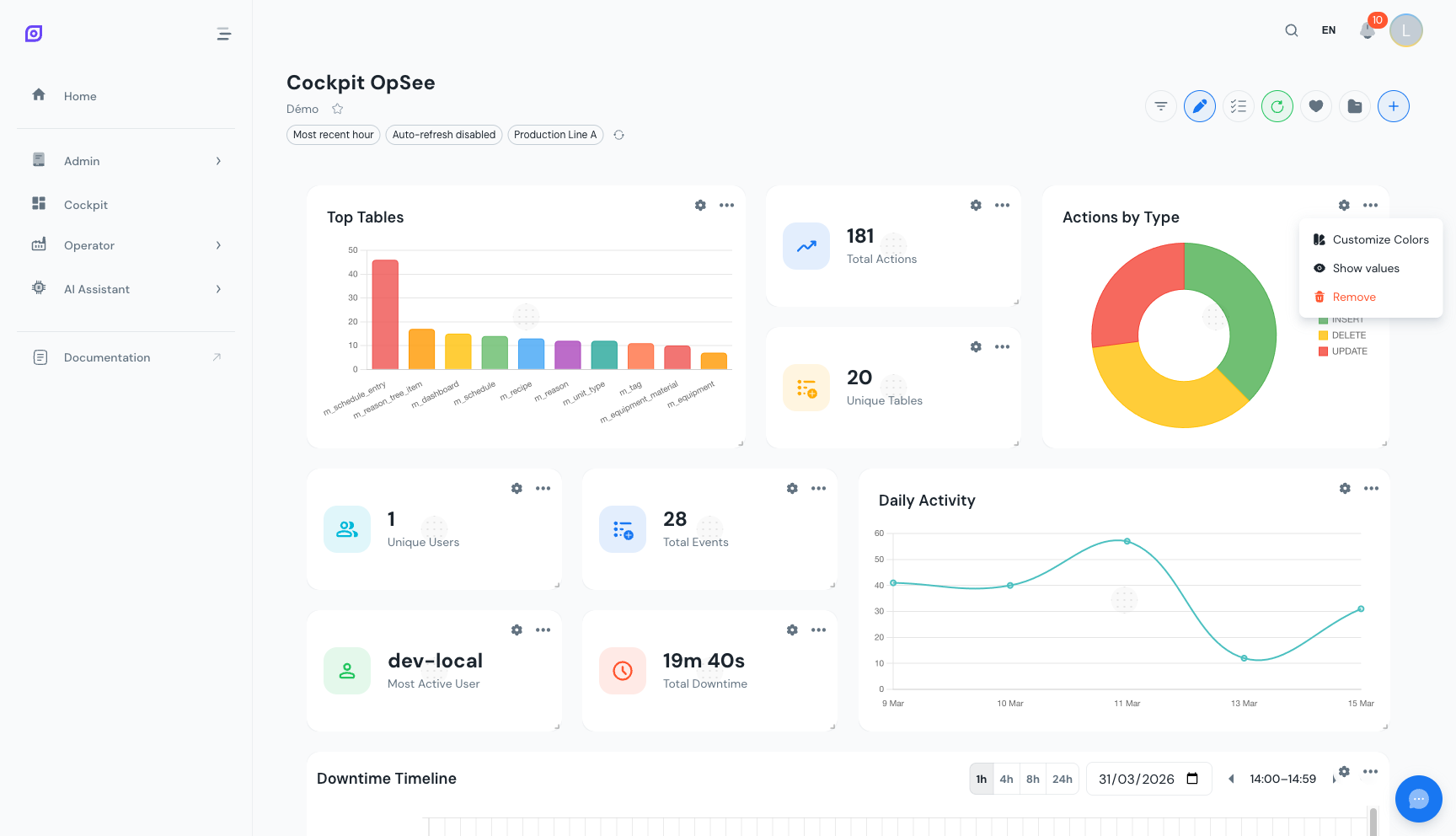 The three-dot menu on a widget header, showing options for colors, icon, data labels, settings, and delete.
Change widget colors
Open the widget menu and select Colors. The available options depend on the widget type.
- KPI widgets: Change the icon badge accent color. Pick from the preset palette (primary blue, success green, warning amber, info cyan, error red) or enter a custom hex value.
- Chart widgets: Change the color of each data series independently. Each variable in the chart legend has its own color picker, so you can match your organization's color conventions.
Color overrides are saved with the configuration and persist across sessions and devices.
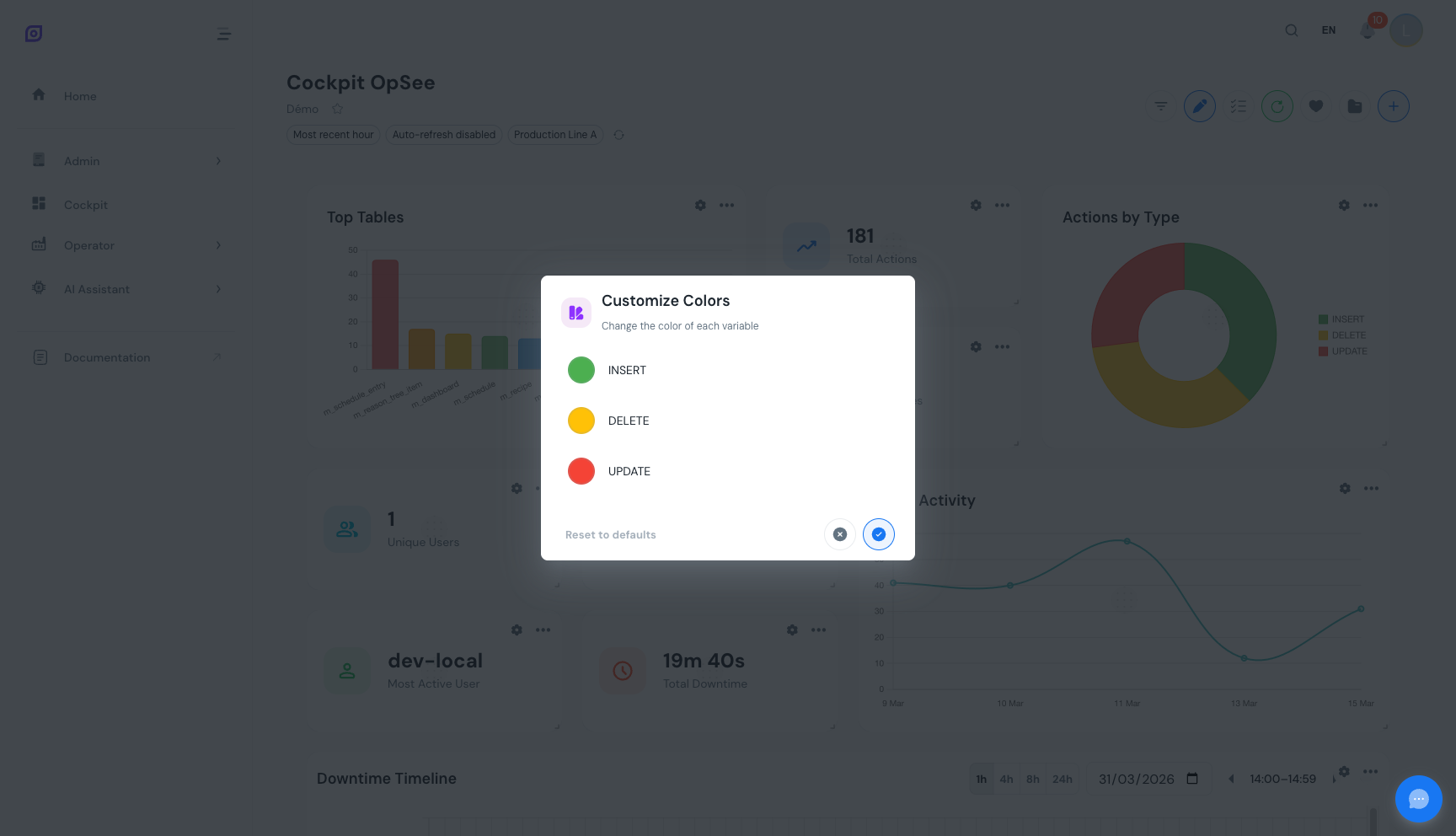 The color picker dialog. KPI widgets offer a preset palette; chart widgets allow per-series color selection.
Change widget icon
Open the widget menu and select Icon. A search dialog appears with access to over 200,000 icons from the Iconify library. Type a keyword (e.g., "factory", "clock", "warning", "speed") to find a matching icon. Click an icon to apply it immediately.
This is useful for giving each KPI card a distinct visual identity at a glance. For example, use a thermometer icon for temperature KPIs and a gauge icon for speed metrics.
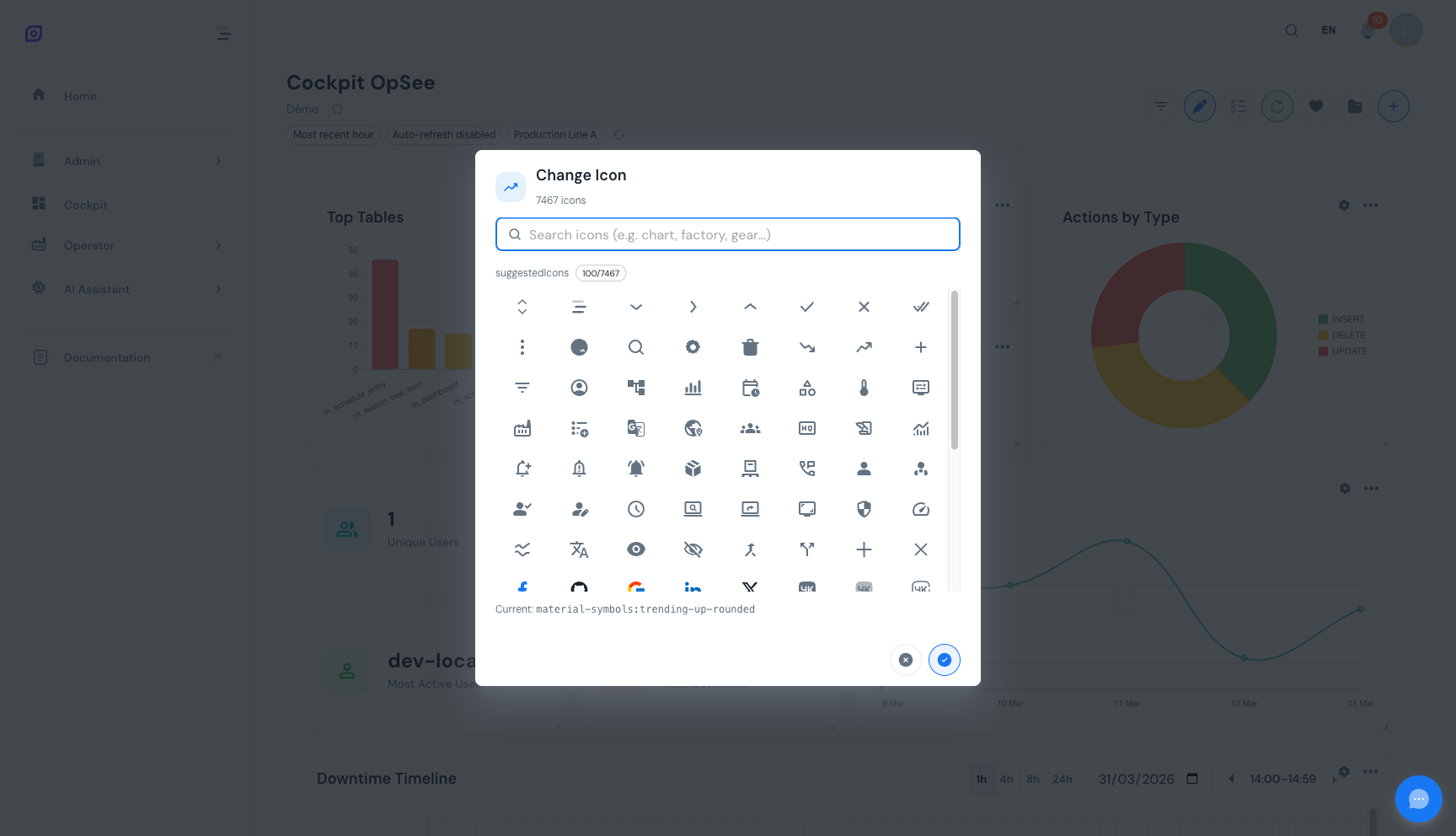 The icon picker dialog. Search over 200,000 Iconify icons by keyword and click to apply.
Toggle data labels
Open the widget menu and toggle Data Labels on or off. When enabled, chart widgets display numeric values directly on bars, doughnut slices, or line data points. Turn them off for a cleaner look when the exact values are less important than the visual pattern.
Data labels work on doughnut and bar chart widgets. KPI, table, line, and timeline widgets are not affected by this setting.
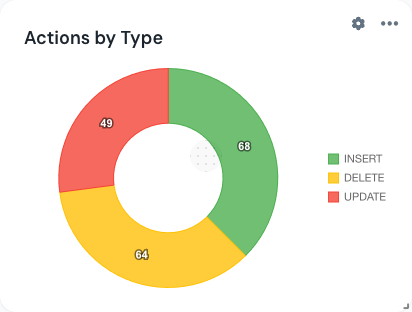 A bar chart with data labels turned on. Numeric values appear directly on each bar for quick reading.
Custom filter badge
When a widget has per-widget overrides (custom time range, equipment, refresh interval, or duration format), a small info badge appears on the widget in view mode. This visual indicator helps you spot which widgets deviate from the global filters at a glance.
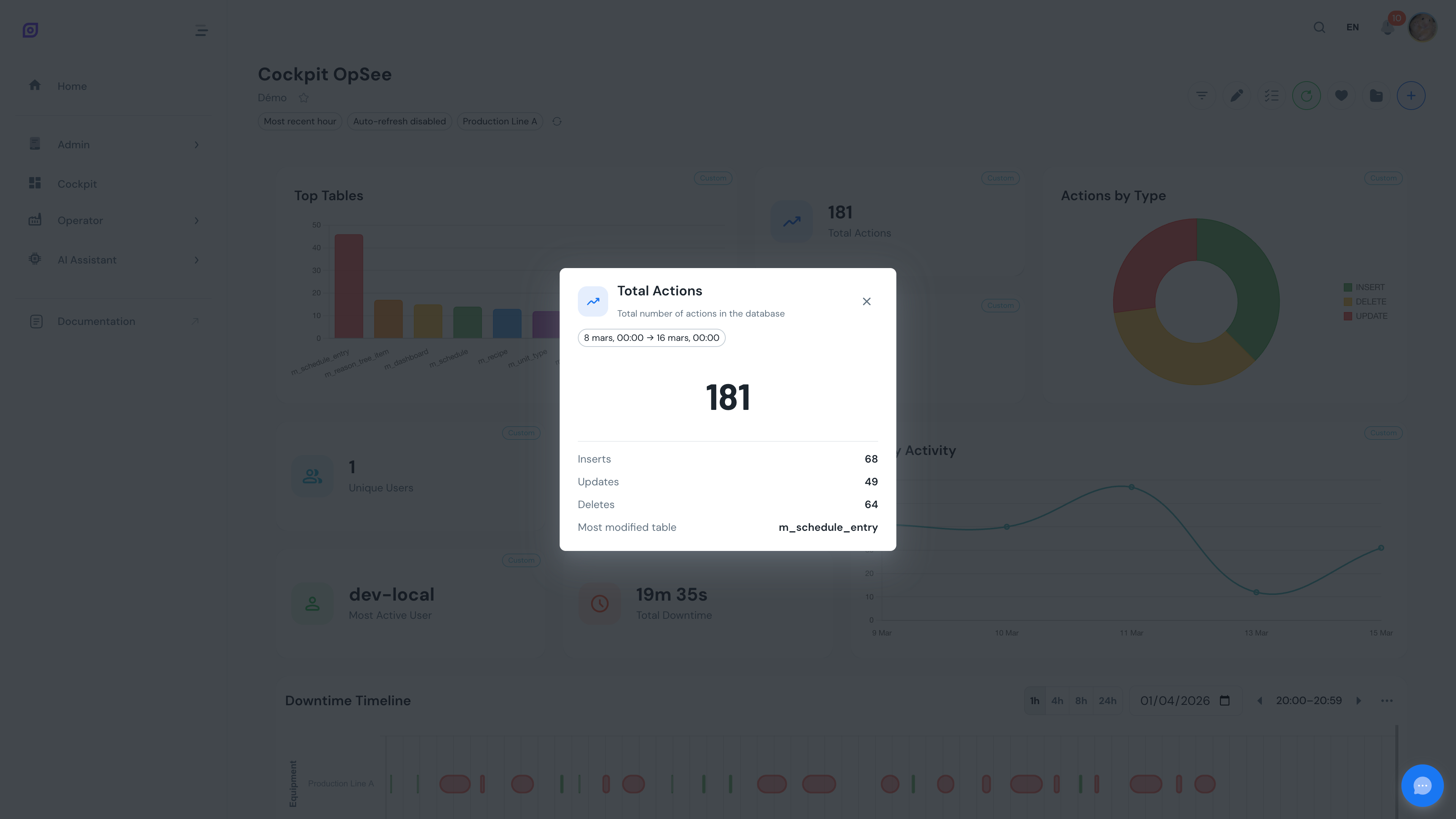
The badge disappears in edit mode to reduce visual clutter while you're arranging the layout.
Select mode
Click the Select button in the toolbar to activate select mode. A checkbox appears on every widget. Check the widgets you want to act on.
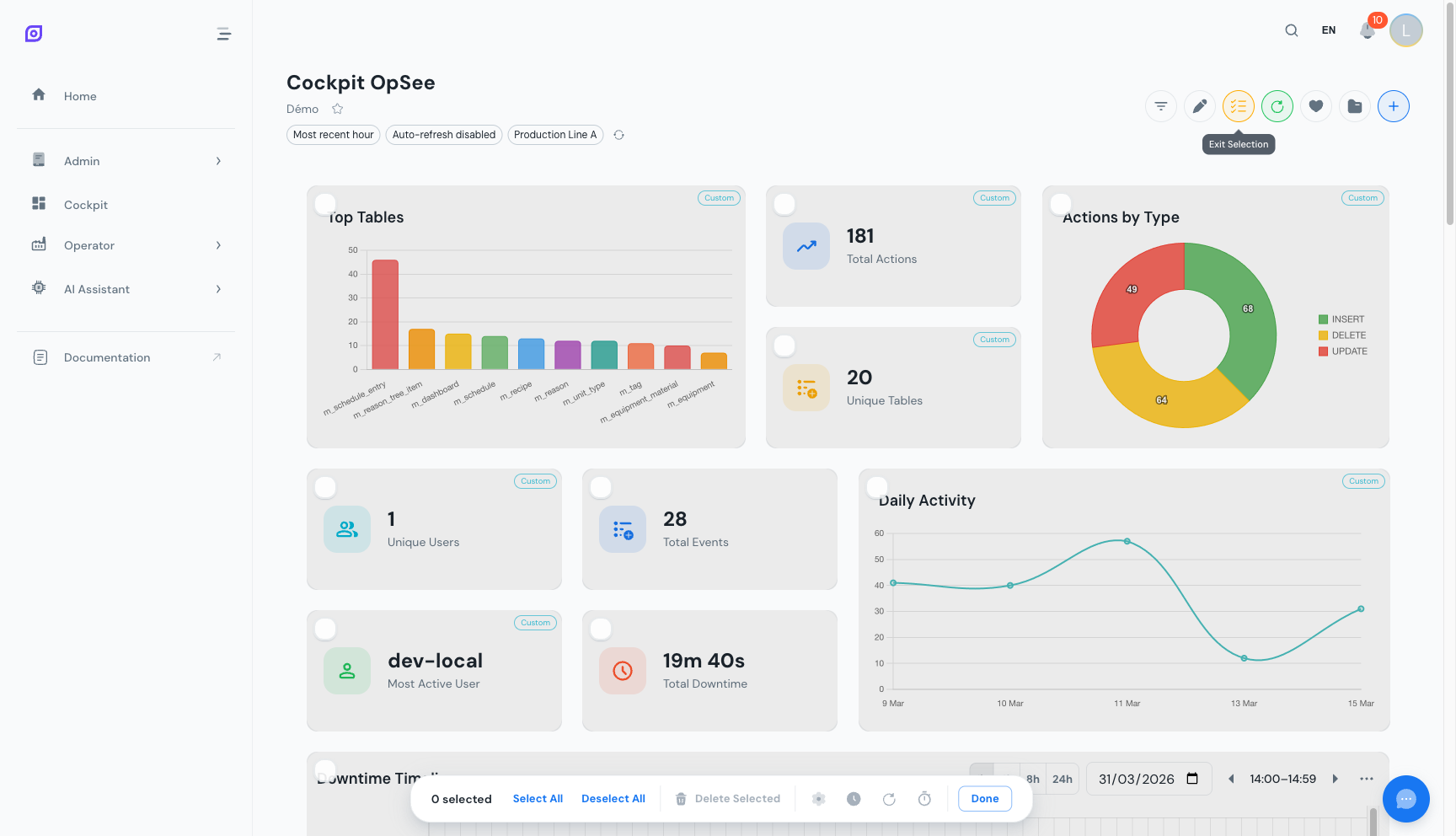 Select mode activated. Each widget shows a checkbox, and the floating action bar appears at the bottom with bulk operations.
Bulk apply settings
With multiple widgets selected, click one of the bulk setting options in the toolbar. Choose which setting to push to all selected widgets at once.
| Setting | Effect |
|---|---|
| Equipment | Apply the same equipment selection to all selected widgets |
| Time Range | Apply the same time period (inherit or custom preset/absolute) to all selected widgets |
| Refresh Interval | Set the same auto-refresh rate (inherit or custom) on all selected widgets |
| Duration Format | Unify the duration display format across all selected widgets |
Each bulk setting opens a focused dialog where you configure the value, then apply it to all checked widgets in one action.
Bulk delete
With multiple widgets selected, click Delete in the toolbar. Confirm the action to remove all selected widgets from the dashboard at once.
Undo delete
After deleting one or more widgets (either individually or in bulk), a snackbar notification appears at the bottom of the screen with an Undo button. Click it within 10 seconds to restore the deleted widgets to their previous positions and settings.
Once the 10-second window closes, the deletion is final.
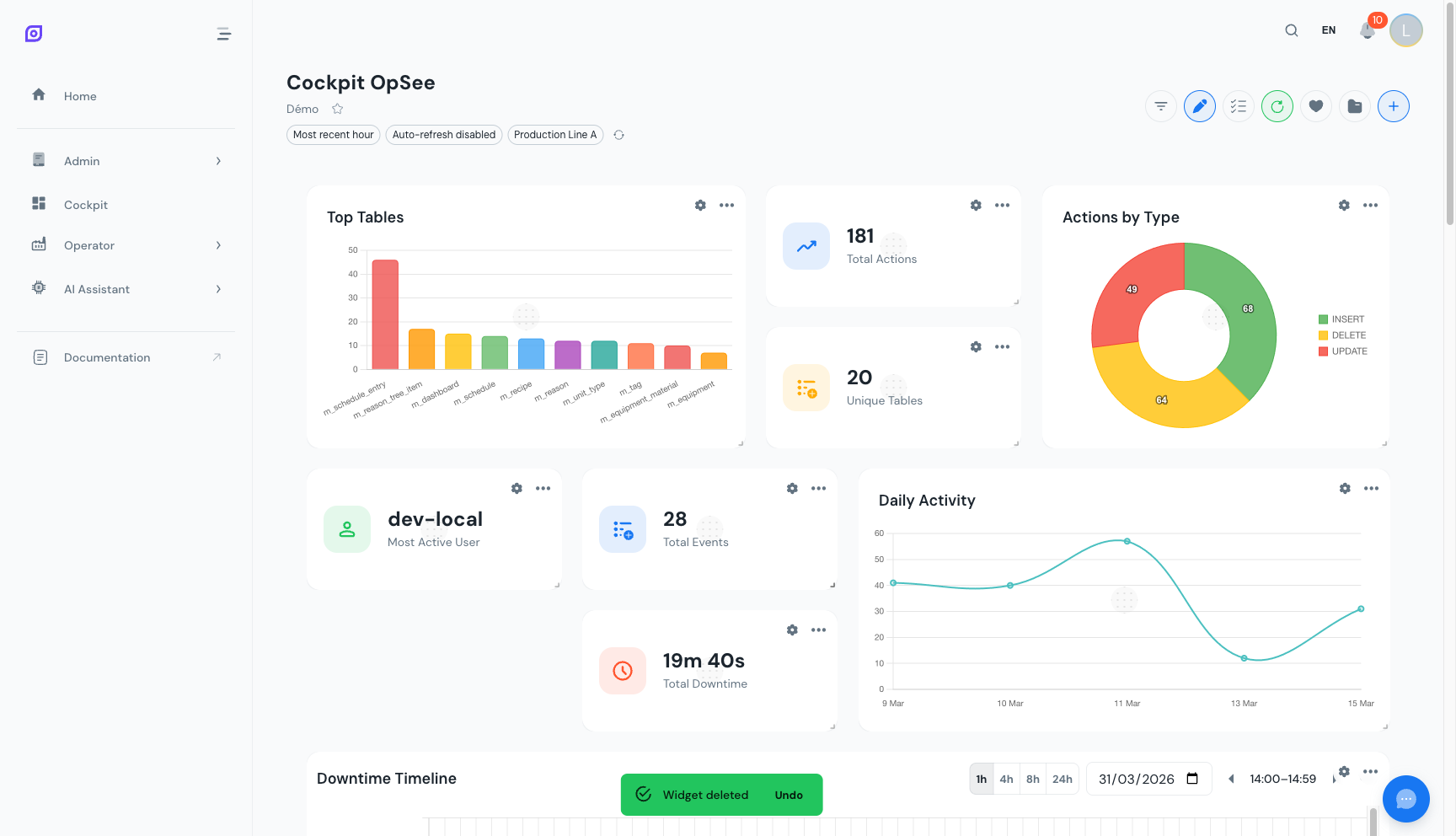 The undo snackbar appears at the bottom of the screen after deleting widgets. Click Undo within 10 seconds to restore them.
Use select mode to quickly apply the same equipment filter to all OEE widgets. Select them all, choose the equipment bulk setting, and every widget updates together without opening each one individually.
Next steps
- Explore the Downtime Timeline -- the most advanced visualization in the Cockpit
- Save your customized dashboard -- persist all visual changes
Prerequisites
- Cockpit Overview
- Introduction: get the overall picture of OpSee
Related
- OEE Fundamentals
- Production: complementary module