Dashboard Management
A configuration stores everything about your dashboard: which widgets are placed, their positions, sizes, filter overrides, color customizations, and icon changes. Save multiple configurations to switch between different views instantly.
Start from a template
A brand-new dashboard is an empty grid -- click New dashboard in the toolbar and choose Blank ("Start with an empty grid") to start there, or pick one of four starter templates for a working dashboard in two clicks. Each template card shows a widget-count chip so you know its size before you commit. The same choice is offered on the empty canvas of any dashboard that has no widgets yet.
| Template | What it adds |
|---|---|
| Line overview | Four OEE gauges (OEE, Availability, Performance, Quality), the Machine State and Produced vs Target tiles, a Justification Timeline, a Loss Pareto chart, and a Downtime Events table -- everything for one line |
| Justification wall | A Justification Timeline split by equipment, the three justification KPI tiles (Unjustified, Produced, Rejects), a Quality Timeline, and a Recent Downtime list for the review pass |
| Trend board | Three Tag Trend widgets plus the Production Trend and Activity Trend charts, for spotting drift |
| Operator board | The single-equipment operator tiles -- Machine State, Produced vs Target, Day Progress -- with an OEE gauge and a Recent Downtime list |
Every template widget inherits the dashboard's global filters -- none of them ship with a per-widget override, so the filter bar at the top drives the whole dashboard from the first load. Once loaded, a template behaves like any other dashboard: rearrange widgets, add more from the catalog, tune filters, and save it under your own name.
Templates are a starting point, not a fixed layout. Add or remove widgets and resize freely before you save -- the template only decides what's on the canvas when you land on it.
Save a configuration
Click the Save button in the toolbar. Enter a name and an optional description, then choose the visibility (public or private).
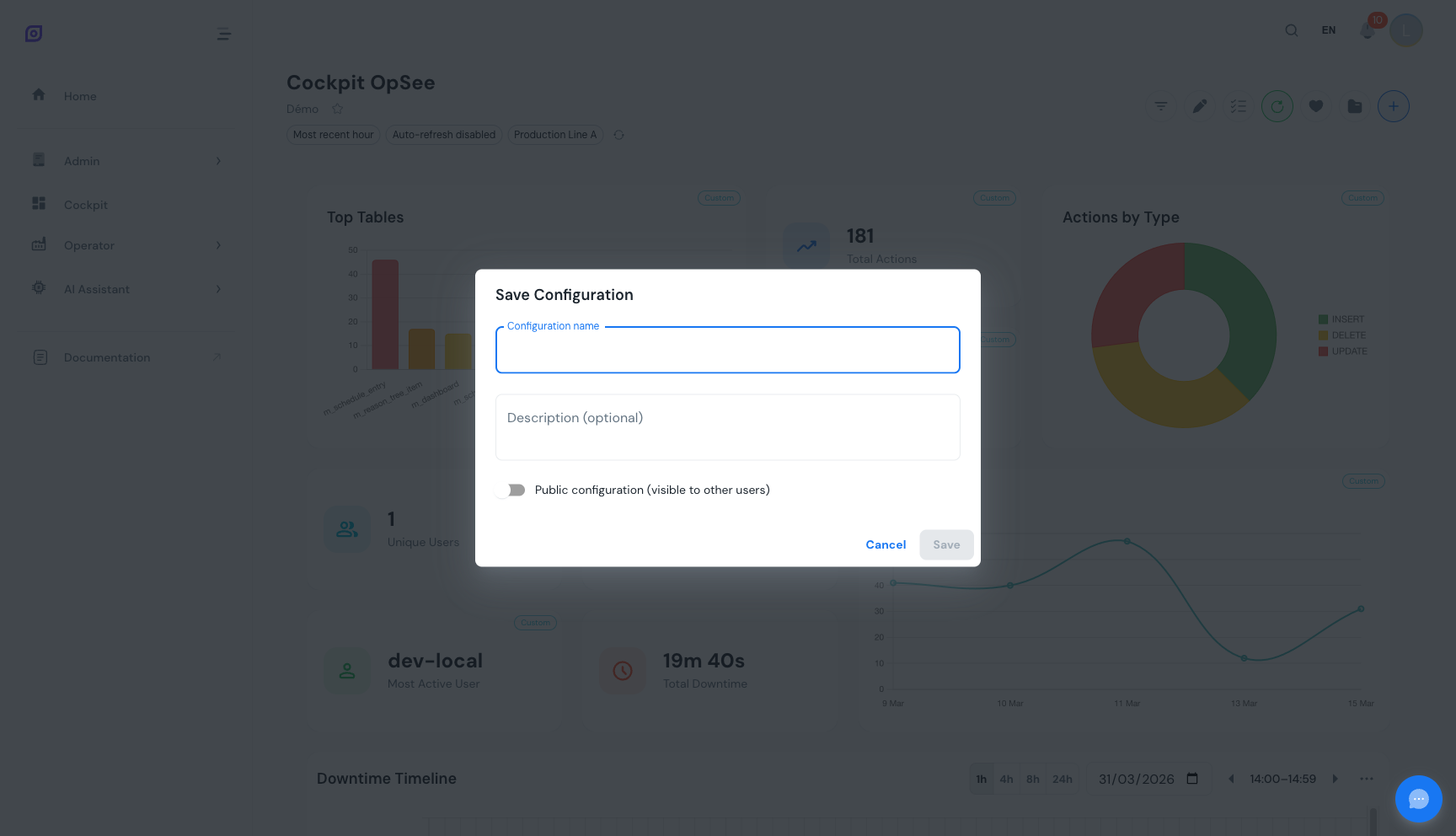 The Save dialog. Give your dashboard a descriptive name and choose who can see it.
Click Save to persist the configuration. All widget positions, filter overrides, color changes, icon overrides, and DataGrid column settings are stored together.
If you are editing an existing configuration, saving updates it in place. The revision number increments automatically for conflict tracking.
Load a configuration
Click the Load button in the toolbar. The dialog shows two sections: your own configurations and public configurations shared by other users.
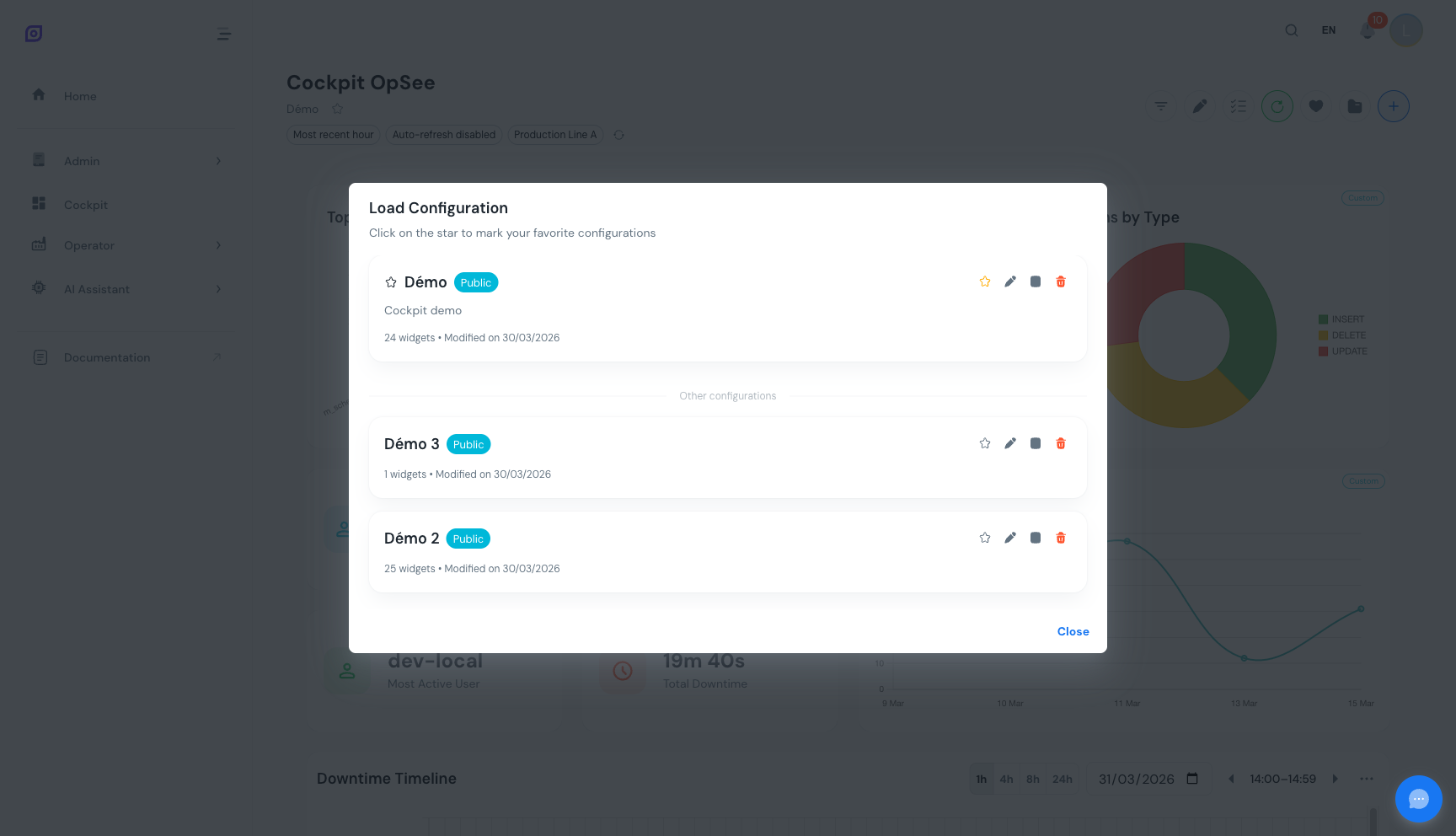 The Load dialog. Your dashboards appear at the top, followed by public dashboards from other users.
Click a configuration card to load it. The current dashboard is replaced with the saved layout and all its settings. DataGrid column widths and visibility settings are also restored.
Rename a configuration
Open the Load dialog, find your configuration, and click the rename action. Enter the new name and confirm. The configuration keeps all its widgets and settings unchanged.
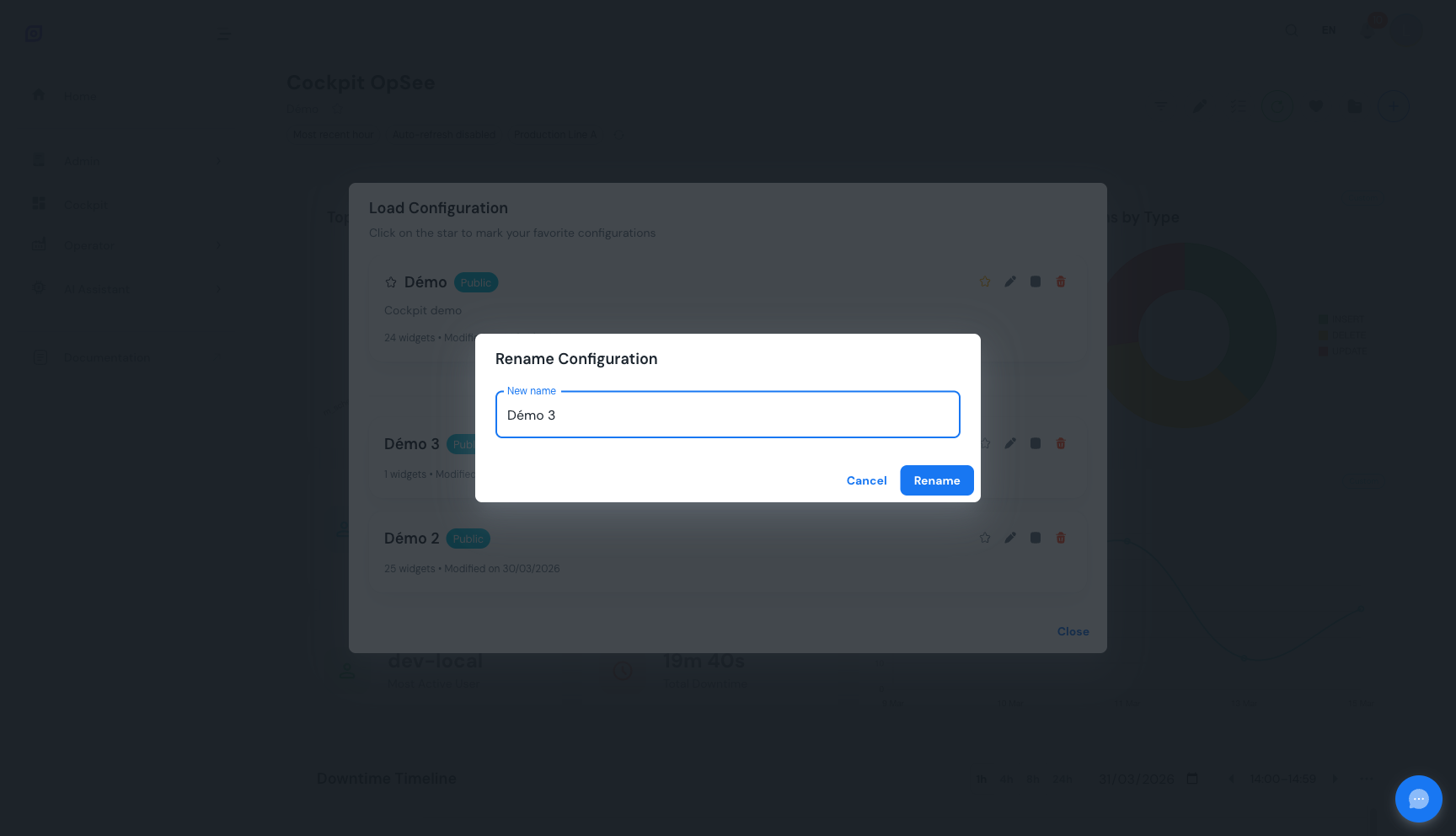 The rename dialog. Enter a new name for the configuration while keeping all widgets and settings intact.
Duplicate a configuration
Click the duplicate action on any configuration in the Load dialog. OpSee creates an independent copy with "(copy)" appended to the name. Edit the copy without affecting the original.
Delete a configuration
Click the delete action on a configuration you own. Confirm the deletion in the dialog that appears.
Deleting a configuration is permanent. There is no way to recover a deleted dashboard. Consider duplicating it first if you are unsure.
Favorite for quick access
Star a configuration in the Load dialog to mark it as a favorite. Starred configurations appear in two places:
- At the top of the Load dialog: for faster access when you have many saved dashboards
- In the favorites dropdown menu: a quick-access dropdown in the Cockpit header that lets you switch between favorites without opening the full Load dialog
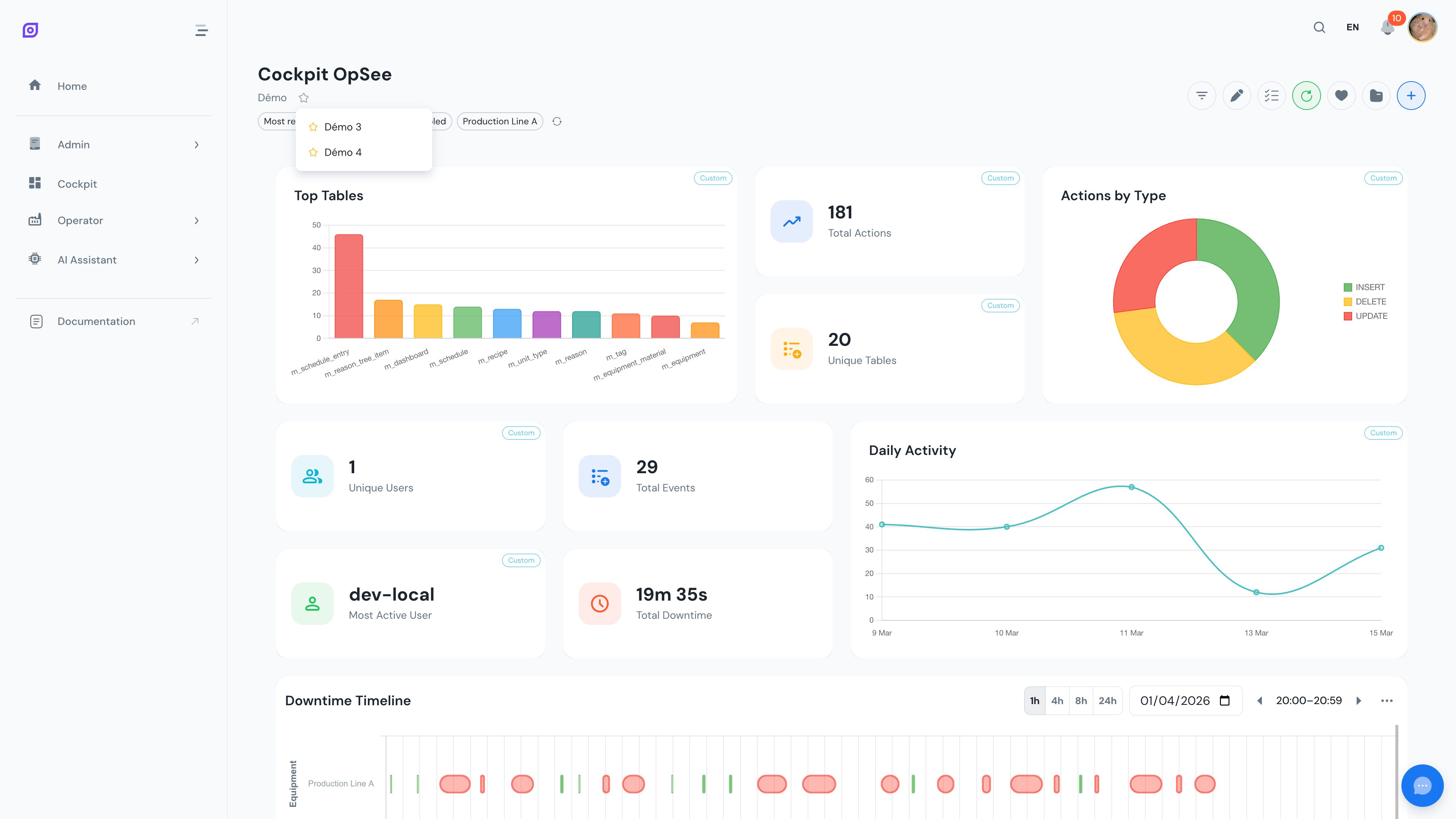
The favorites dropdown only appears when you have at least one starred configuration.
Public vs private
| Visibility | Who can see it | Who can edit it |
|---|---|---|
| Private | Only you | Only you |
| Public | All users | Only you (the owner) |
Toggle visibility when saving or from the Load dialog. Public configurations let your team reuse proven layouts without rebuilding them from scratch.
Editing a public dashboard you don't own
When you load a public dashboard that belongs to someone else, a Public dashboard chip appears in the header to remind you that you're viewing someone else's configuration. You can still rearrange widgets, change filters, or add and remove widgets, but the regular Save/Update action is not available -- only the owner can overwrite it. Click Save as... to persist your changes as a new configuration of your own; the original stays untouched for everyone else.
This is the same rule the demo dashboards follow: browse and tweak them freely, then Save as... the moment you want to keep a change.
Conflict handling
OpSee uses optimistic locking with revision numbers. Each save increments the revision. If you try to update a dashboard that was modified by someone else since you loaded it:
- OpSee detects the conflict (HTTP 409)
- A warning appears: the dashboard was modified externally
- The latest version is automatically reloaded from the server
- You can then re-apply your changes and save again
If a dashboard is deleted while you have it open (HTTP 404), OpSee resets to an empty cockpit and lets you save as a new configuration.
What gets persisted
When you save a configuration, everything about your dashboard is stored:
| Category | What is saved |
|---|---|
| Widgets | Widget type, instance ID, all custom settings |
| Layout | Position (x, y) and size (width, height) of every widget on the grid |
| Global filters | Time range, preset, equipment selection, refresh interval, duration format |
| Per-widget overrides | Custom time, equipment, refresh, duration per widget |
| Visual customization | Color overrides, icon overrides, data label toggles |
| DataGrid settings | Column widths, column visibility, page size, sort field and direction |
| Timeline settings | Color mode, view mode, split count, auto-follow, duration labels, selected equipment |
Loading a saved configuration restores your dashboard exactly as it was, including table column widths and sort order.
Unsaved changes
Adding, removing, moving, or resizing a widget -- or changing a widget's own settings, colors, icon, or per-widget filters -- only changes the dashboard in your browser. The saved copy on the server changes when you click Update or Save as.... Until then an orange Unsaved changes chip appears next to the dashboard name; hover it to see why.
Only edits to the dashboard itself count. Changing the global time range, equipment, refresh interval, or duration format, resizing or hiding table columns, and paging through a timeline never mark the dashboard as unsaved.
If you try to leave the Cockpit with unsaved changes, OpSee asks first:
| Choice | What happens |
|---|---|
| Save & leave | Updates the saved dashboard in place, then continues to the page you picked |
| Save as... & leave | Shown instead when you can't update the dashboard (it has never been saved, or it's someone else's public dashboard). Opens the Save dialog; you leave once the save succeeds, and cancelling keeps you on the Cockpit |
| Leave without saving | Continues without saving to the server. The edits stay in this browser's local copy, so they come back (with the chip) the next time you open the Cockpit, unless you load a different dashboard first or someone else saves this one in the meantime -- see Auto-save to local storage |
| Stay | Closes the prompt and keeps you on the Cockpit |
If the save fails (for example because someone else changed the dashboard in the meantime -- see Conflict handling), you stay on the Cockpit and the error appears at the bottom of the screen. Closing or reloading the browser tab with unsaved changes shows the browser's own "Leave site?" warning instead.
A dashboard that has never been saved is lost for good when you leave the page -- it is not restored when you come back. OpSee therefore asks every time you leave a canvas that has at least one widget on it. An empty canvas never prompts.
Auto-save to local storage
Your current dashboard state is automatically saved to the browser's local storage after every change. This provides two benefits:
- Browser crash recovery: unsaved edits to a saved dashboard are kept in this browser and restored when you reload the page or next open the Cockpit. Opening a link to a different dashboard (
?dashboard=in the address) loads that dashboard's saved version and replaces the local copy. The same happens if someone else saved the dashboard since you last loaded it: you see their saved version, so your next Update can't overwrite it. Unsaved edits are not visible on other devices or to other users until you click Update. A dashboard that was never saved is not restored. - Cross-tab sync: if you have the Cockpit open in multiple tabs, changes in one tab are reflected in the other
Duplicate a public dashboard before customizing it. This way your changes are independent, and the original stays intact for the rest of the team.
Next steps
- Customize widget appearance: change colors, icons, and toggle data labels
- Explore the Downtime Timeline: deep dive into the most advanced widget
Prerequisites
- Cockpit Overview
- Introduction: get the overall picture of OpSee
Related
- OEE Fundamentals
- Production: complementary module