Using the Chatbot
Route: AI → AI Agents (/ai/agents)
The chatbot interface is where you type questions and read the AI's responses. It is divided into a conversation sidebar on the left and the active chat on the right.
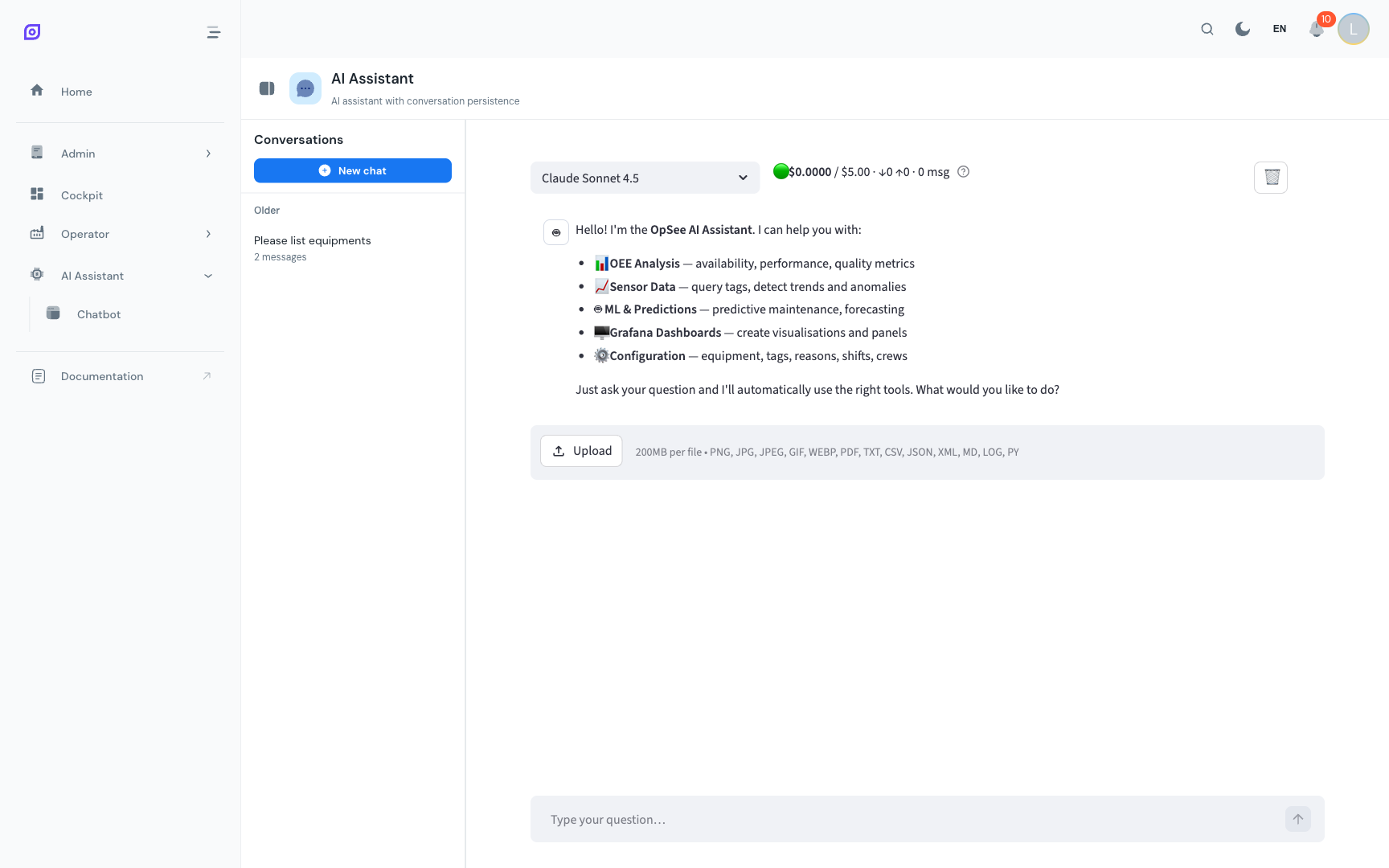
Interface layout
| Area | Purpose |
|---|---|
| Left sidebar | Conversation history: switch between chats or create a new one |
| Chat area | The active conversation: messages from you and the assistant |
| Input field | Where you type your question |
| Send button | Submit your question (or press Enter) |
On mobile, the sidebar collapses into a toggle button. Tap it to open the conversation list.
Typing a Question
- Click the input field at the bottom of the chat area
- Type your question in natural language
- Press Enter or click the send button
- Wait a moment: the assistant calls the relevant OpSee data APIs and formulates a response
The assistant typically responds within 5–15 seconds. Complex queries (OEE calculations across multiple equipment, time-series analysis) may take slightly longer.
Reading answers
The assistant formats answers with:
- Plain text for simple answers
- Tables for structured data (OEE values, equipment lists, shift schedules)
- Code blocks for SQL queries it ran (when using the SQL tool in admin mode)
- Numbered lists for step-by-step instructions
If the assistant cannot answer a question (insufficient data, unclear question, or exceeds its scope), it explains why and suggests alternatives.
Asking follow-up questions
You can continue the conversation naturally:
You: "What was the OEE for Line 1 last week?" Assistant: "Line 1 had an OEE of 72.4% last week (Availability: 89.1%, Performance: 87.3%, Quality: 93.0%)." You: "What caused the availability losses?" Assistant: "The main availability losses on Line 1 last week were: (1) Mechanical fault — 4h 20min, (2) Changeover — 2h 45min, (3) Material shortage — 1h 10min."
The assistant remembers the full conversation context, so you do not need to repeat "Line 1 last week" in every follow-up.
API Key Configuration
The AI assistant requires an Anthropic API key to function.
Server-Wide Key (preferred)
Your administrator can configure a server-wide Anthropic API key in the system settings. If configured, the chatbot works without any setup on your part — just start typing.
A status indicator at the top of the chatbot interface shows whether a server key is active.
Personal API key
If no server key is configured, or if you prefer to use your own key:
- Click the settings icon (gear) in the chatbot toolbar
- Enter your Anthropic API key (starts with
sk-ant-...) - Click Save: the key is stored only for your browser session
- The key is sent with each request and is never stored on the OpSee server
:::warning API key security Never share your Anthropic API key with other users. If you enter it in OpSee, it is stored in your browser's session storage and cleared when you close the tab. :::
Prerequisites
- AI Assistant Overview — understand the capabilities first
- Conversations — manage your chat history
Next steps
- Tips and Limits — write better questions, understand limitations
Related
- Cockpit — use dashboards for recurring questions instead of the chatbot