Administration
The Administration module contains all system-level configuration and management tools. It is primarily used by plant administrators, IT staff, and system integrators.
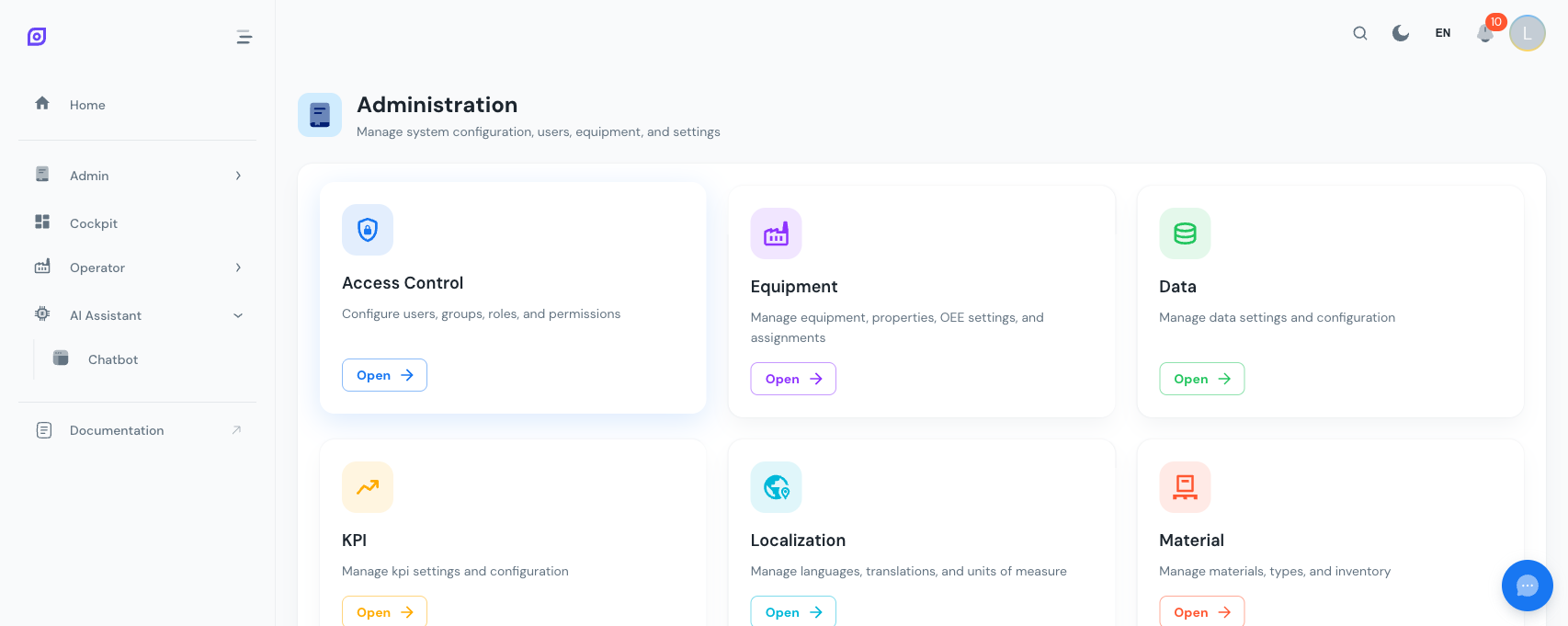
What you manage here
| Section | Purpose | Who uses it |
|---|---|---|
| Access Control | Users, business roles, permissions, equipment scope | IT admins |
| Audit Trail | Activity logs, change tracking, compliance | Admins, quality managers |
| Localization | Languages, translations, units of measure | Admins, translators |
| Data Tags | Sensor tags, MQTT/OPC-UA data points | Integrators, engineers |
| Data Trends | Time-series data visualization | Engineers, supervisors |
| Import/Export | Bulk data operations (CSV, XLSX, JSON) | Admins |
| System Parameters | Runtime configuration | IT admins |
| Grafana Integration | Dashboard and user sync | IT admins |
Getting started
If you're setting up OpSee for the first time, follow this order:
- Set up users and permissions: create accounts and assign business roles + equipment scope
- Configure languages: enable the languages your operators need
- Connect data sources: map sensor tags to equipment
- Import master data: bulk-load equipment, reasons, and schedules
Related modules
- Equipment — The equipment that tags connect to and users access
- OEE Configuration — Loss types and reasons you can import/export
- Concepts: Data Flow — Understand how tags and ingestion workers fit in the architecture
- Architecture — Technical deep dive into services, auth, and database
Learn more
| Page | What you will find |
|---|---|
| Access Control | User management, business roles, permissions, equipment scope |
| Audit Trail | Viewing and filtering activity logs |
| Localization | Language, translation, and UOM management |
| Data Tags | Configuring sensor data collection |
| Data Trends | Visualizing time-series tag data |
| Import/Export | Bulk data operations |
| System Parameters | Runtime configuration options |
| Grafana Integration | Grafana user and dashboard sync |
Prerequisites
- Introduction — get the overall picture of OpSee