Translations
Route: Administration → Localization → Translations (/admin/localization/translations)
The Translations page lets administrators manage the localized labels for all custom data in OpSee: navigation menu items, downtime reasons, loss types, material names, shift names, and more.
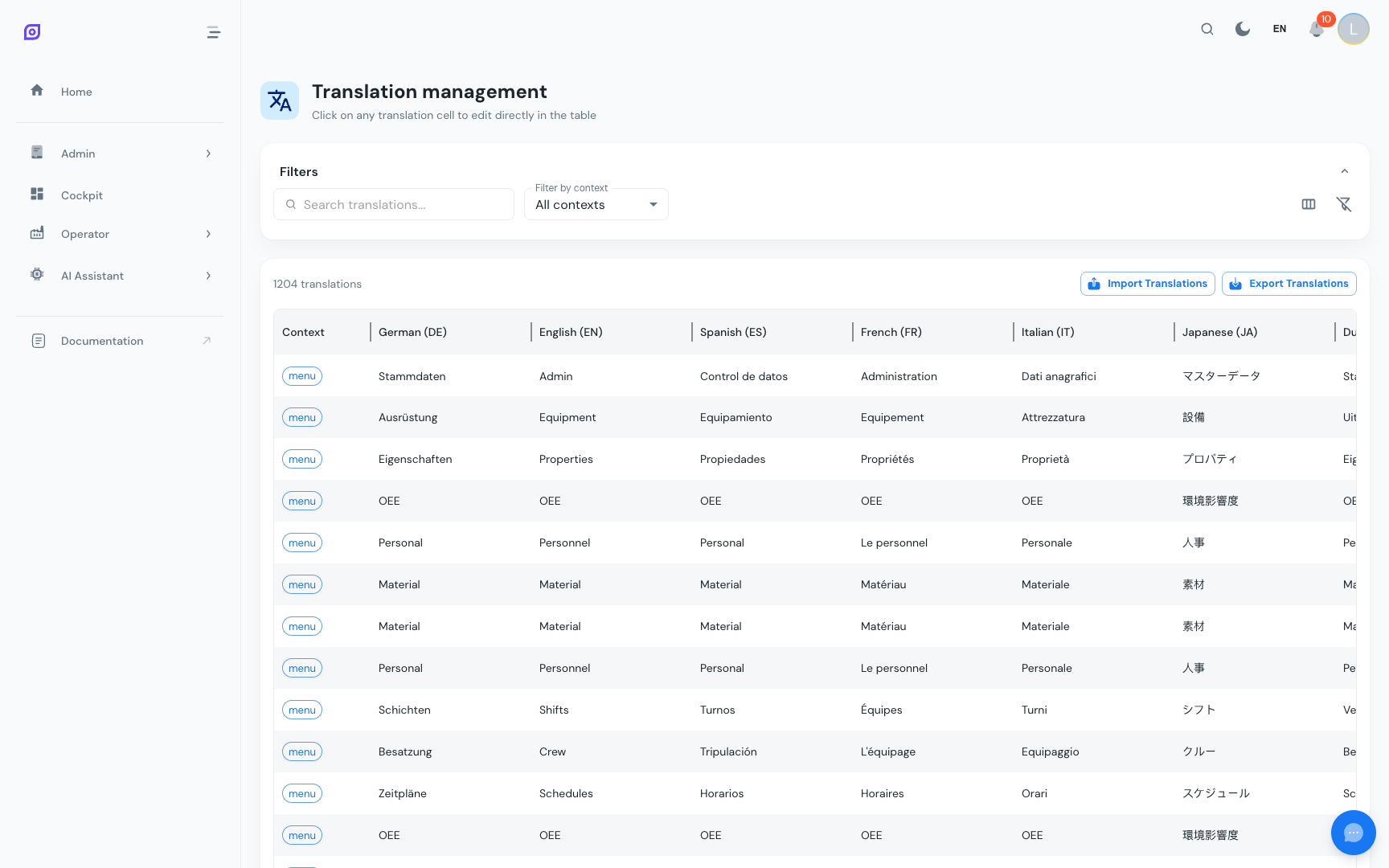
How OpSee translations work
OpSee has two layers of text:
- Built-in UI strings: button labels, column headers, error messages. These are bundled with the application and translated by the OpSee development team.
- Custom data strings: the names you gave to your reasons, menus, materials, equipment, etc. These must be translated by your team (or via auto-translation).
The Translations page manages the second layer.
Translation contexts
Translations are grouped by context: the type of data they belong to. Contexts are global and shown with a readable label, for example:
| Context | What it translates |
|---|---|
| Menu | Navigation menu item labels |
| Reasons | Downtime reason names |
| Loss types | Loss type names and descriptions |
| Materials | Material names and descriptions |
| Shifts | Shift names (Morning, Afternoon, Night, …) |
| Equipment | Equipment names and descriptions |
| Units of measure | Unit of measure names |
| Time presets | Time range preset names and descriptions |
| Parameters | Platform parameter descriptions |
| AI agents | Chatbot agent names and descriptions |
Every entity type that supports translated names (equipment classes, capabilities, recipes, phases, operations, production orders, crews, and so on) has its own context. An entity's name and description share the same context.
Finding translations to edit
- Use the Context filter to narrow to a specific data type
- Use the search box to match translated text, the context label, or a translation ID
- Click any translation cell to edit it inline
Auto-Translation with DeepL
OpSee includes a DeepL-powered auto-translation feature:
- Go to Administration → Localization → Languages
- Click Auto-Translate All for the language you want to fill in
- Translation runs as a background task; missing strings are filled in from the default language
Auto-translation also runs automatically after data imports (equipment, reasons, loss types, …) when requested.
:::caution Review auto-translations DeepL provides high-quality general translations, but manufacturing terminology can be misinterpreted. Always have a native speaker review:
- Downtime reasons (safety-critical)
- Quality defect names
- Process step names :::
Manual translation
To translate a single entry:
- Click the entry in the grid
- Edit the translated text in the panel that appears
- Click Save
Missing translations
When a translation is missing for a user's active language, OpSee falls back to the default language (usually English). Missing translations appear with a warning indicator in the grid.
A badge on the Translations menu item shows the total count of missing translations across all languages.
Import / Export
Translation sets can be exported and re-imported as CSV or XLSX. This is useful for:
- Sending translation work to an external translator
- Applying a bulk update from a spreadsheet
- Migrating translations from another OpSee installation
Prerequisites
- Localization Overview — the full localization module
- Languages — enable languages before adding translations
Next steps
- Units of Measure — configure measurement units
Related
- Language and Timezone — user-facing language switching