Languages
Route: Administration → Localization → Languages (/admin/localization/languages)
The Languages page controls which languages are available to users in the OpSee interface. Enabling a language adds it to the language selector in the header and activates it for translations.
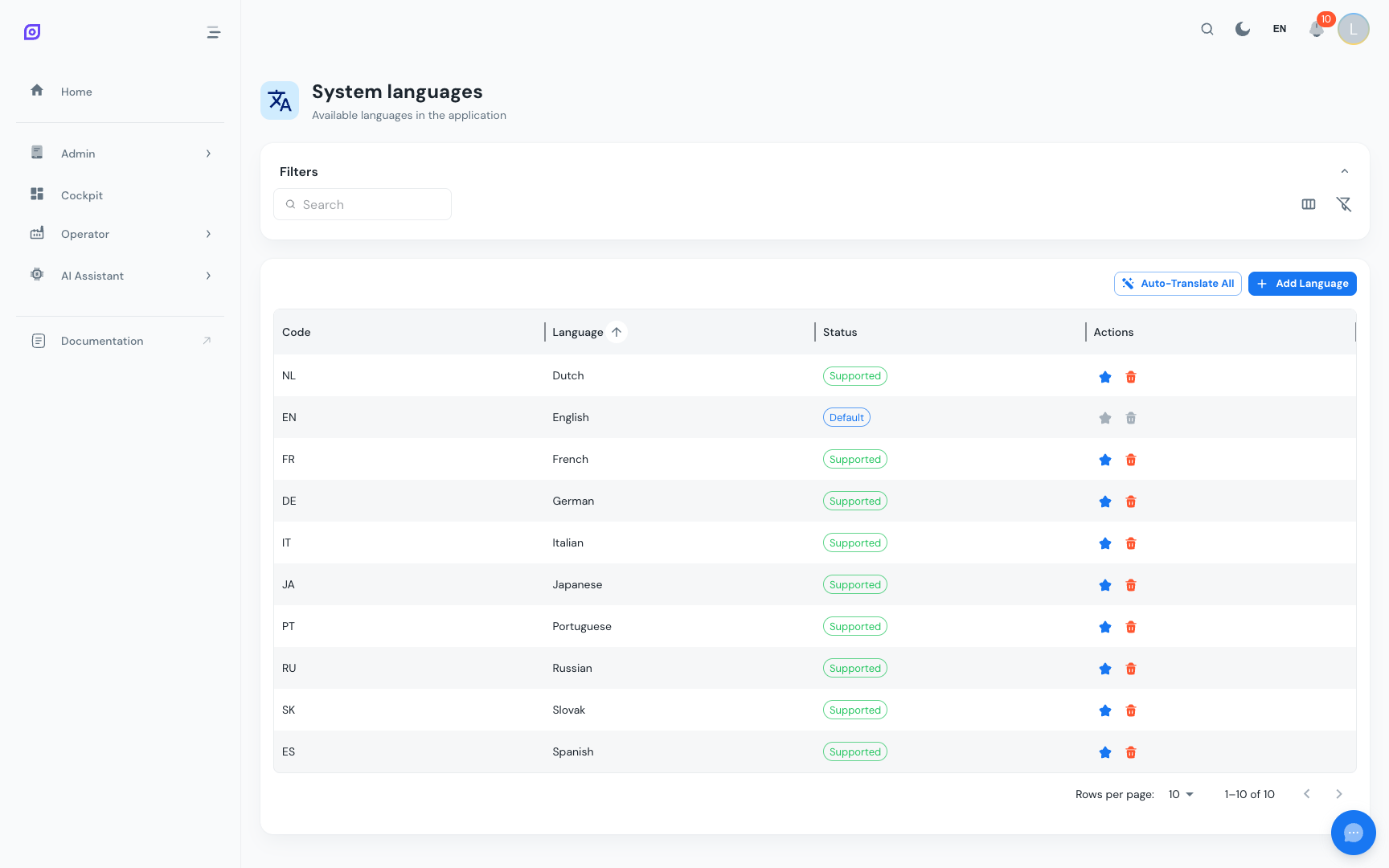
Supported languages
OpSee ships with 10 built-in languages:
| Language | Code | Notes |
|---|---|---|
| English | en | Default language; always enabled |
| French | fr | |
| German | de | |
| Spanish | es | |
| Italian | it | |
| Dutch | nl | |
| Portuguese | pt | |
| Japanese | ja | |
| Slovak | sk | |
| Russian | ru |
Enabling a Language
- Navigate to Administration → Localization → Languages
- Find the language you want to enable
- Toggle the Enabled switch to On
- Click Save
The language immediately appears in the language selector for all users.
:::info Translation coverage Enabling a language without translating custom data (reasons, menu items, material names, …) means those items appear in their source language (usually English) for that locale. Use the Translations page to fill in the gaps. :::
Setting the Default Language
The default language is used when:
- A new user signs in for the first time (before they set a preference)
- The system cannot determine the user's preferred language
- The user's browser language does not match an enabled language
To change the default:
- On the Languages page, find the target language
- Click Set as Default
- Confirm the change
English is the recommended default unless your plant is in a monolingual environment.
Disabling a Language
Disabling a language removes it from the language selector. Users who had that language selected are automatically switched to the default language.
- Toggle the Enabled switch to Off for the target language
- Click Save
Existing translations for the language are retained. If you re-enable it later, all translations are still there.
Prerequisites
- Localization Overview — the full localization module
Next steps
- Translations — translate menu items, reasons, and material names
- Units of Measure — configure measurement units
Related
- Language and Timezone — user-facing language switching