Data Trends
The Data Trends view provides time-series visualization of your tag data. Use it to analyze sensor readings, identify patterns, and investigate equipment behavior over time.
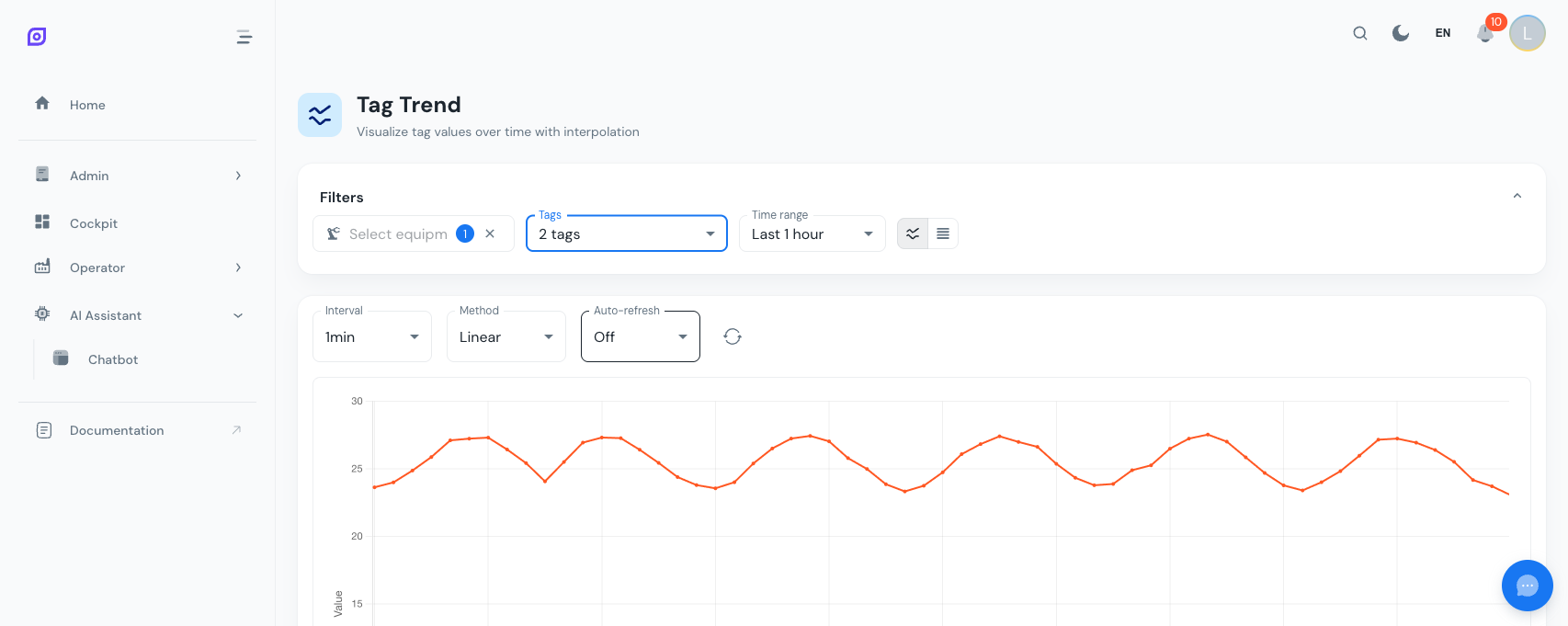
Using data trends
Navigate to Admin → Data → Trends.
Selecting tags
- Choose one or more tags to display on the chart
- Select the time range (presets or custom dates)
- Choose the data transformation:
- Raw: plot exact data points as received
- Linear: apply linear scaling (scale + offset) for unit conversion
- Step: interpret as discrete state changes (ideal for running/stopped signals)
Reading the Chart
The trend chart shows:
- X-axis: time
- Y-axis: tag values (auto-scaled)
- Multiple series: overlay multiple tags on the same chart
- Zoom: click and drag to zoom into a specific time range
- Tooltip: hover over data points to see exact values and timestamps
Setting aggregation intervals
For long time ranges, raw data can contain millions of points. Use aggregation intervals to downsample:
| Time Range | Recommended Interval |
|---|---|
| Last hour | Raw (no aggregation) |
| Last 24 hours | 1 minute |
| Last week | 5 minutes |
| Last month | 1 hour |
Common use cases
| Use Case | What to look for |
|---|---|
| Verify data flow | Check that tags are updating at expected intervals |
| Temperature monitoring | Identify drift, spikes, or out-of-range events |
| Speed analysis | Compare actual speed to ideal cycle time |
| State visualization | See running/stopped patterns over a shift |
| Troubleshooting | Correlate sensor data with downtime events |
:::tip Combine with Grafana For advanced dashboards with alerting, use the Grafana Integration. Grafana connects to the same TimescaleDB and offers more visualization options for time-series data. :::
Next steps
- Data Tags — Configure the tags that feed these trends
- Grafana Integration — Advanced time-series dashboards
- Overview — Back to Administration overview
Prerequisites
- Admin Overview
- Introduction — get the overall picture of OpSee
Related
- Architecture Overview
- Cockpit — complementary module