Alarm Notifications
Route: Admin → Alarms → Channels and Admin → Alarms → Routing (/admin/alarms); per-alarm actions live in the Actions tab of the definition dialog.
Phase 1 of the alarms feature put every alarm on the operator screen and the header bell. Phase 2 sends them out: to a mailbox, a phone, a chat room or another system. This page covers the three building blocks (channels say where, routing rules say which alarms, actions say what else happens for one specific alarm), the safety valves that keep an alarm flood from becoming a mail flood, and how to read the delivery status when something does not arrive.
Prerequisites
- Alarm Administration for definitions, priorities and the lifecycle events a notification reacts to
- The
perm:alarms:adminpermission; only the Admin role has it by default - For phone push: the ntfy service described in Push notifications to phones
- For e-mail: the SMTP defaults in System Parameters
How a Notification Gets Out
The alarm_notifier worker does all of this once every 5 seconds (and immediately when an alarm changes). Every step leaves a trace: the outbox row, a Notification entry in the alarm's timeline, and the Last error column of the channel.
Channels
A channel is one delivery target. Under the hood every channel is a single Apprise URL, which is why one screen covers e-mail, push, chat and webhooks alike. You never see that URL: the dialog asks for a few fields per type, the server composes the URL, encrypts it and stores it. Passwords and tokens are write-only: the grid and the edit dialog show a masked target such as mailtos://***@smtp.example.com:587, and the server never returns the stored credentials.
The Channels tab
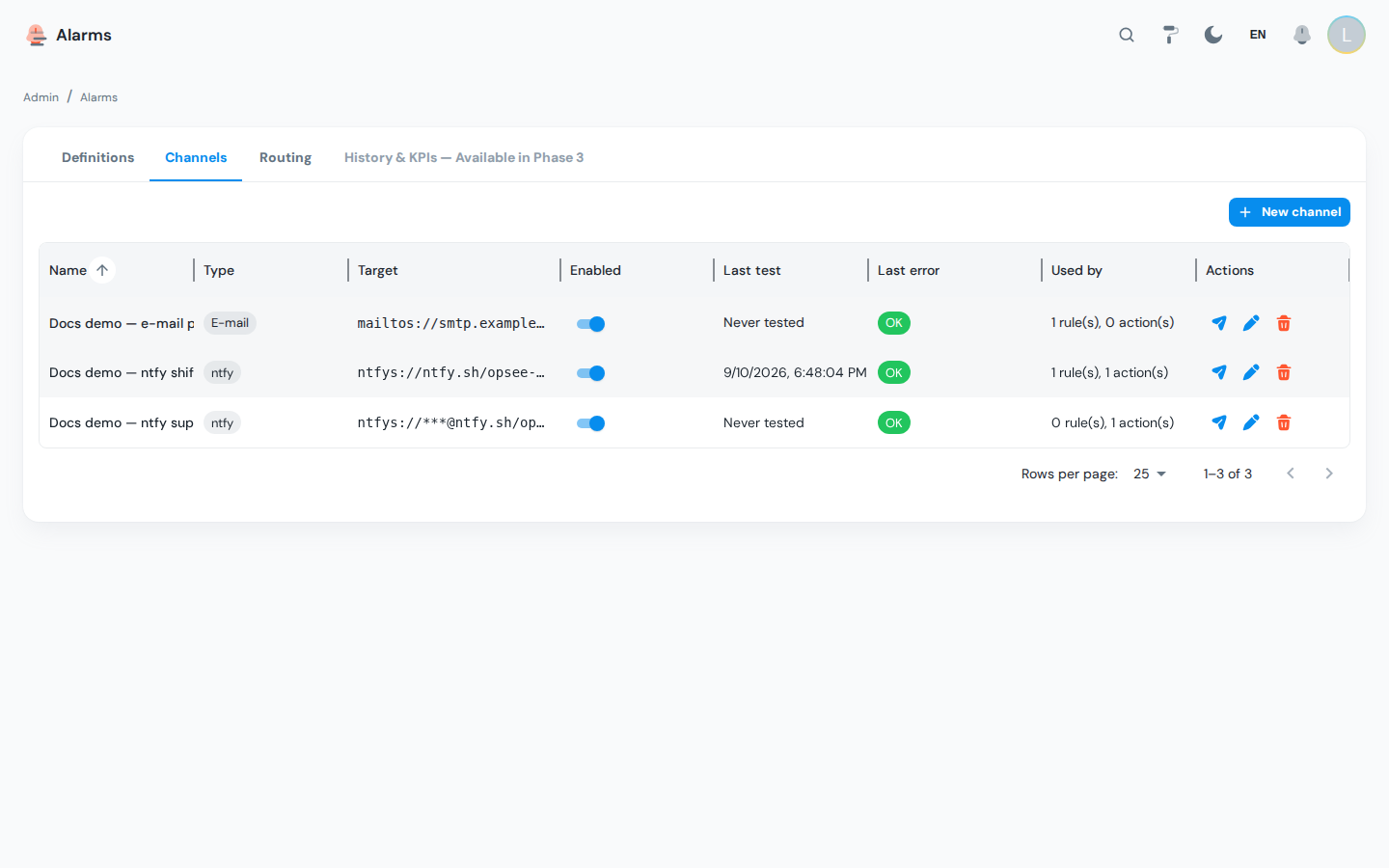
| Column | Meaning |
|---|---|
| Name | Free text; shown in routing rules, actions and the operator's timeline |
| Type | E-mail, ntfy, Webhook, Microsoft Teams, Telegram, Slack or Custom address |
| Target | The masked delivery address. For e-mail and ntfy the host is shown; for chat services only the scheme survives (tgram://***), because there the host part is the credential. |
| Enabled | A disabled channel is skipped by every rule and action that points to it |
| Last test | When Send test message last ran, and whether it worked (OK) |
| Last error | The short reason of the most recent failed delivery or test; cleared by the next successful one |
| Used by | N rule(s), M action(s): how many routing rules and definition actions reference the channel |
Creating a channel
Click New channel, pick the Type and fill in the fields for that type.
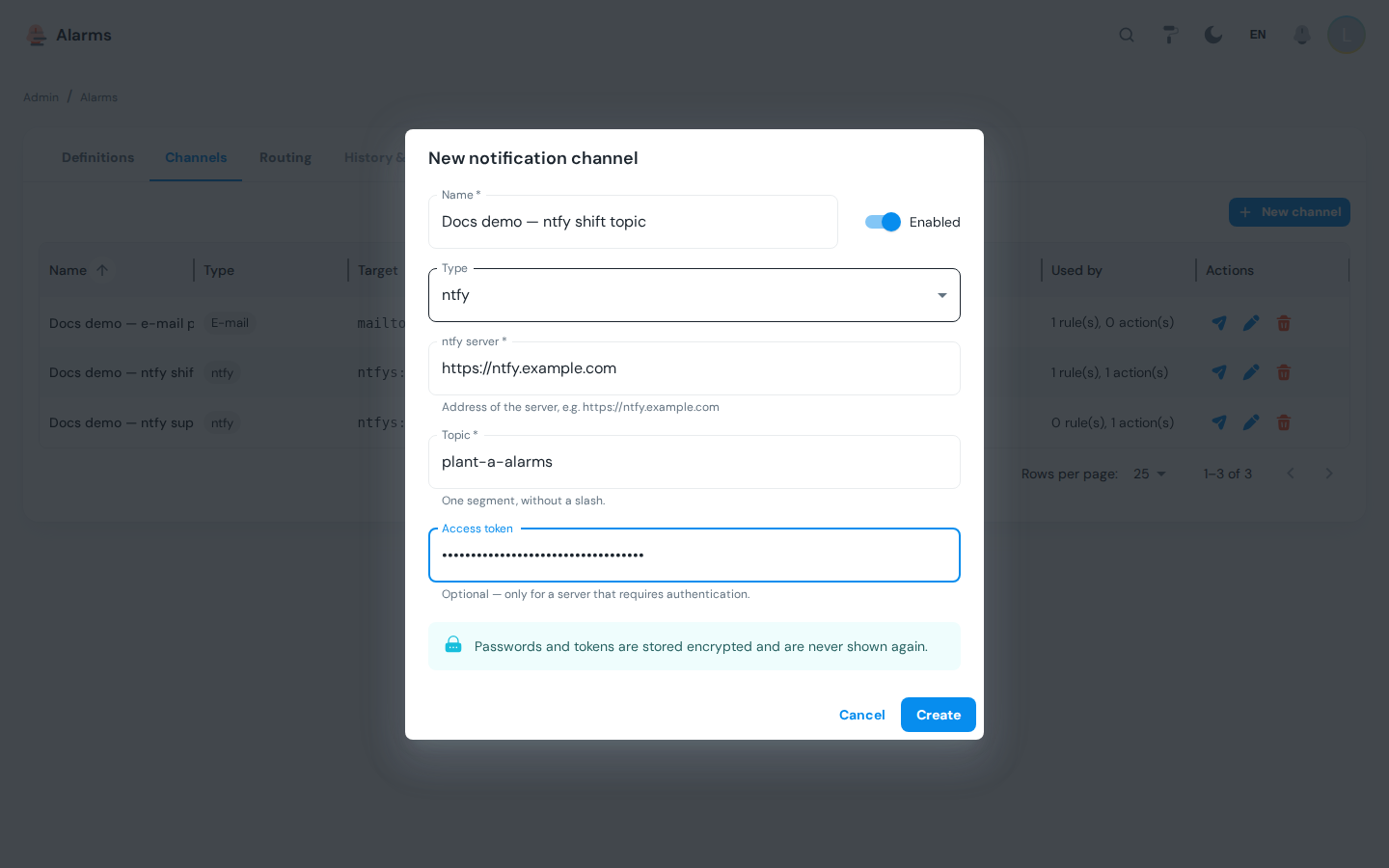
| Type | What to enter | Where the secret goes |
|---|---|---|
Recipients (one or more addresses, comma-separated). SMTP server, Port, User, Sender address and Use STARTTLS can be left empty to inherit the NOTIFY_SMTP_* system parameters; fill them in only for a channel that uses a different relay. | Password, in the channel dialog. It is stored inside the encrypted URL, never as a system parameter, because parameters are readable by every admin. | |
| ntfy | ntfy server (what you would type in a browser, for example https://plant.example.com/ntfy or https://ntfy.sh; https means TLS), Topic (one segment, no slash or space). | Access token, only when the server requires one. The self-hosted service always does: use the publish token printed by ntfy-setup.sh. Use either a token or a user/password, not both. |
| Webhook | Endpoint address: an http:// or https:// URL. The message is POSTed as JSON. | Any credential is part of the URL you enter. |
| Microsoft Teams, Telegram, Slack | Service address in the service's own Apprise format (the dialog shows the expected scheme, for example msteams:// or workflows://, tgram://, slack://, and links to the format documentation). A Slack channel cannot quietly be a mailto://: the scheme is checked against the type. | The bot token or webhook key inside the address. |
| Custom address | Apprise address: any of the 100+ services Apprise supports, credentials included. You must tick I know the required format before saving; a custom address is only checked for its scheme, so a wrong one fails at delivery time, not at save time. Plain http(s):// is refused here: use the Webhook type. | Inside the address. |
Every channel also has a Name and an Enabled switch.
:::tip Test before you route Save, then click Send test message on the row. A fixed test message is sent through the channel with a 15-second budget; the result appears as a toast and in Last test / Last error. One test per channel per 30 seconds is allowed, so the button cannot be turned into an outbound spam source; the toast tells you how long to wait. :::
Editing a channel
The name, type and enabled flag can be changed freely. Because the server never returns the stored address or password, changing the delivery settings means clicking Replace the delivery settings and entering all of them again. Until you do, the dialog shows the masked Stored target and leaves it untouched.
Deleting a channel
Delete on the row asks for confirmation. If the channel is still referenced, the dialog changes to Channel still in use and tells you how many routing rules and alarm actions point to it; Delete anyway removes the channel and those rules and actions. Pending notifications for the channel are dropped with it.
Routing Rules
A routing rule (a subscription in the API and the database) is the normal way to route alarms: "send these events, of alarms at or above this priority, under this equipment, to that channel, during these hours". A new alarm definition needs no configuration to be routed; it is covered by whatever rules match its equipment and priority.
The Routing tab
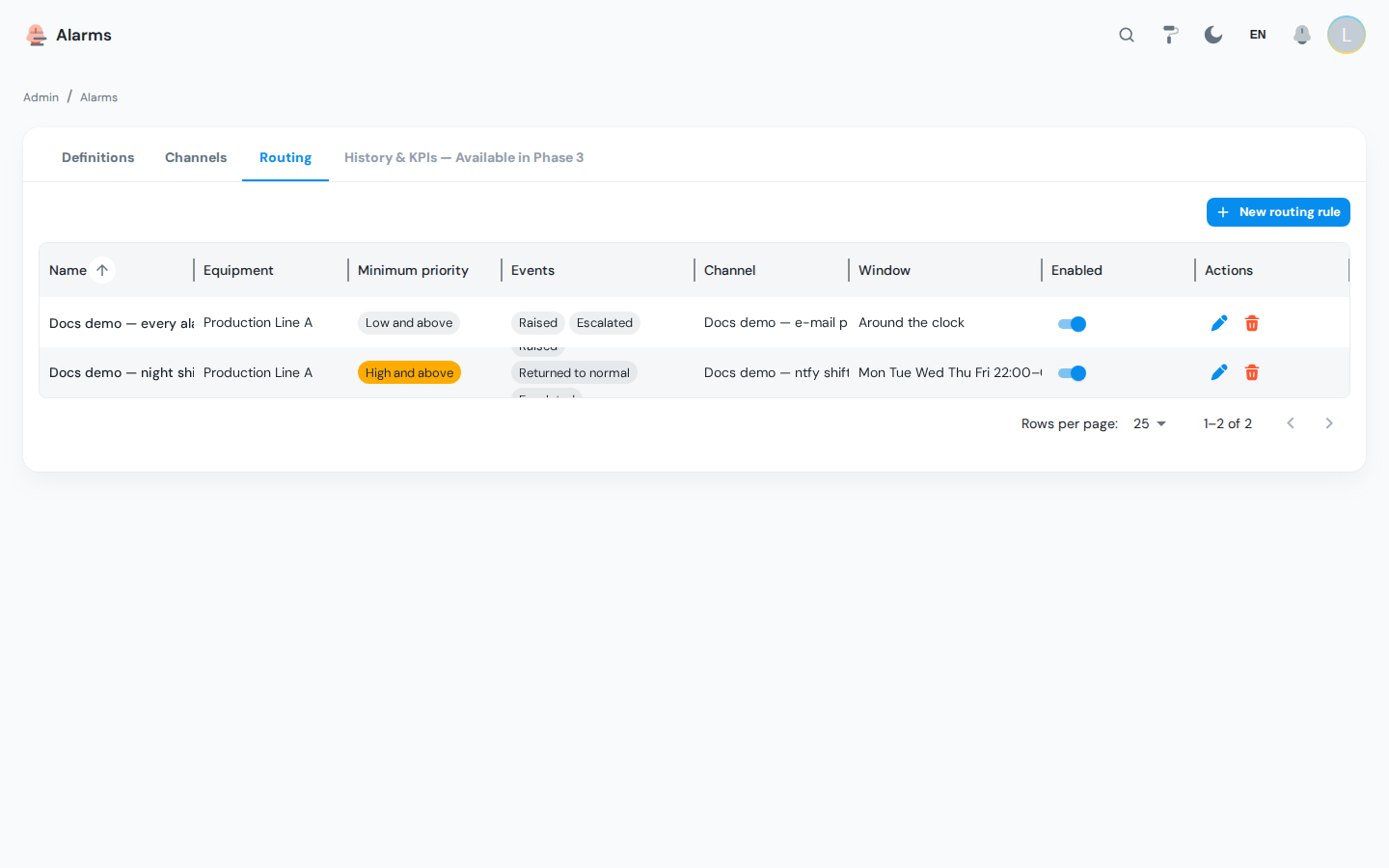
| Column | Meaning |
|---|---|
| Name | Free text |
| Channel | The channel the rule sends to |
| Equipment | The equipment the rule covers, subtree included; empty means every line |
| Minimum priority | Shown as High and above |
| Events | Which lifecycle moments are forwarded |
| Window | Around the clock, or a summary of the time window |
| Enabled | A disabled rule matches nothing |
Creating a rule
Click New routing rule (the button is disabled with a hint until at least one channel exists).
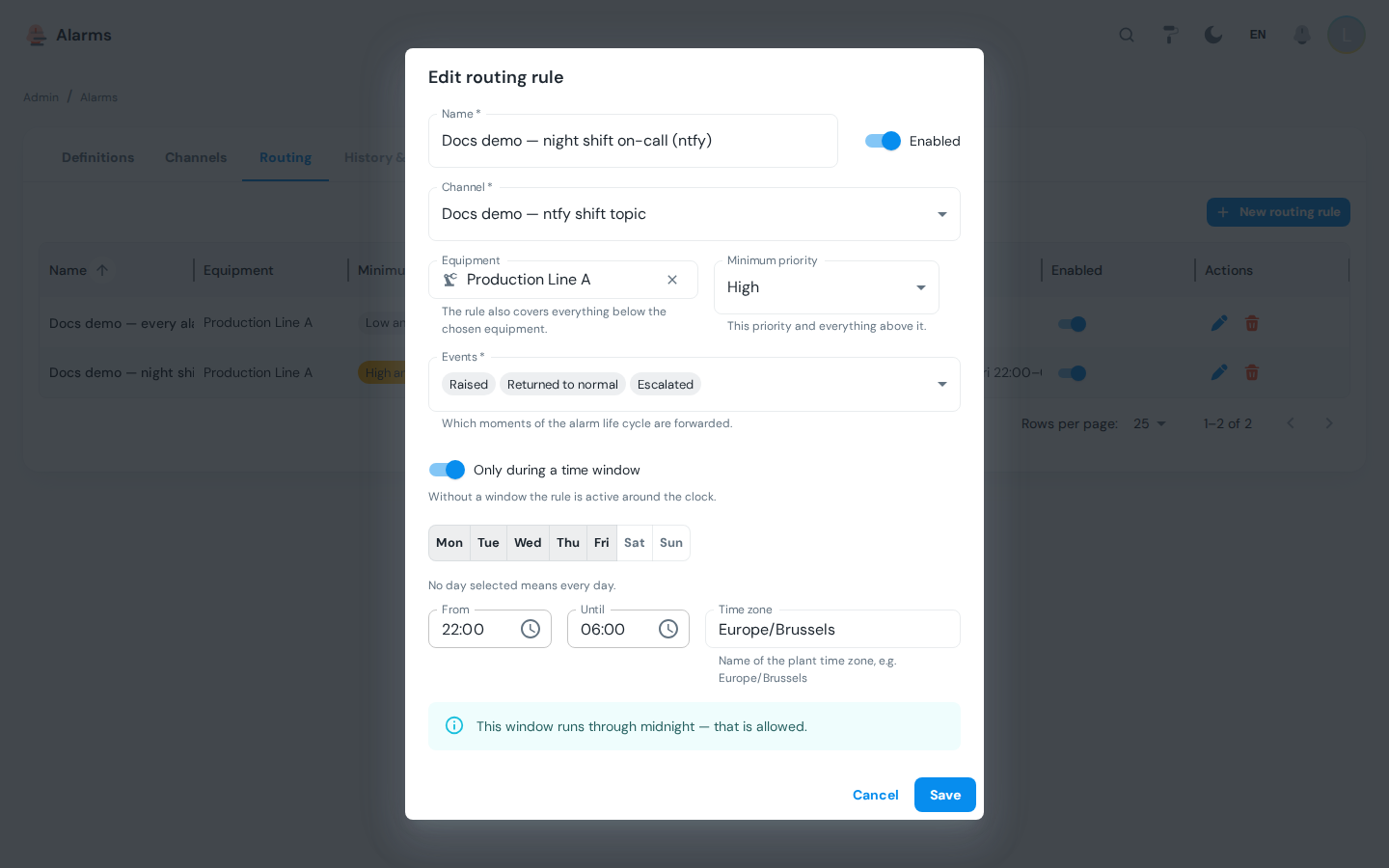
| Field | Meaning |
|---|---|
| Name | Required |
| Channel | Required. Disabled channels are listed but skipped at delivery time. |
| Equipment | Optional. The rule also covers everything below the chosen equipment. Leave it empty for a plant-wide rule. |
| Minimum priority | This priority and everything above it. Low means every alarm. |
| Events | At least one of Raised, Returned to normal, Acknowledged, Snoozed, Escalated. Raised is the default; the other four are mostly useful for a log channel or a chat room that should show the whole story. |
| Only during a time window | Off by default: the rule is active around the clock. When on: Days (no day selected means every day), From and Until (HH:MM, in the Time zone you enter, for example Europe/Brussels; the plant time zone from the system parameters is the default). A window whose Until is earlier than From runs through midnight, which is allowed and hinted in the dialog. |
Quiet hours and on-call windows
A window is a positive filter: the rule fires only while the window is open. To build a schedule:
- Day shift to e-mail, night shift to phones: two rules on the same equipment, one with
06:00–22:00to the e-mail channel, one with22:00–06:00to the ntfy channel. - Quiet hours for a channel: a single rule with the hours you do want to be disturbed. Outside the window nothing is sent and nothing is queued: an alarm raised at 03:00 is not delivered at 06:00 when the window opens. If someone must always know, add a rule without a window on a channel that can wait (e-mail).
- Weekend on-call: Days
Sat,Sun, no hours, to the on-call channel.
A malformed schedule never silences a rule: if the server cannot make sense of it, the rule is treated as always open; nothing is logged (only an unknown time zone leaves a debug-level trace), so check the window carefully after saving.
Actions on a Definition
Routing rules cover the general case. The Actions tab of the definition dialog (Alarm Administration → The Edit Dialog) adds what one specific alarm should do on top of the rules. Each row is one action:
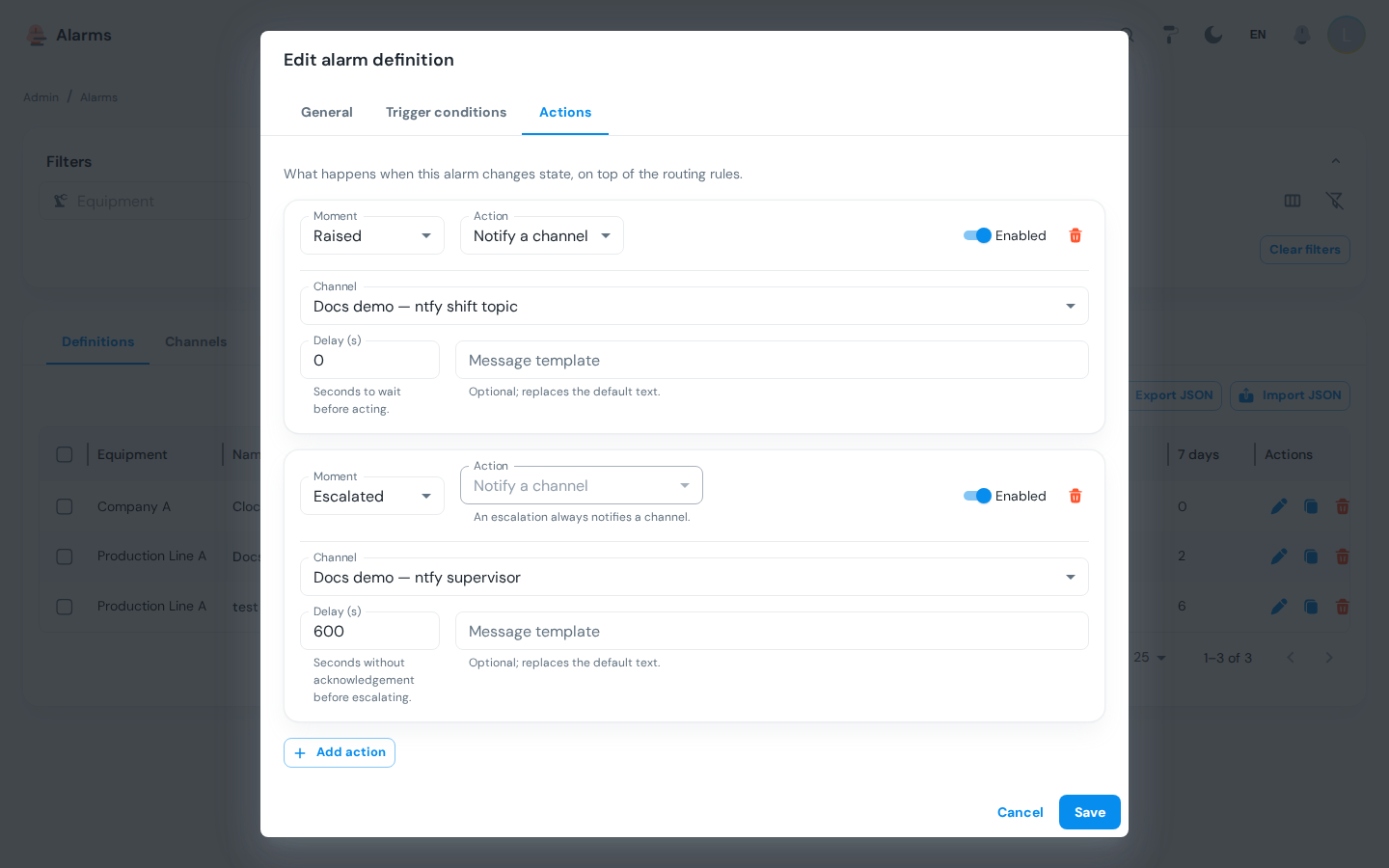
| Field | Meaning |
|---|---|
| Moment | Raised, Returned to normal, Acknowledged, Snoozed or Escalated |
| Action | Notify a channel or Write a tag |
| Channel | For Notify a channel: which one. An escalation always notifies a channel. |
| Tag / Value | For Write a tag: the tag to write and the value (a number, true/false or text). Whether the tag is writable is checked when you save. |
| Delay (s) | Seconds to wait before acting. For Escalated: seconds without acknowledgement before escalating; must be greater than zero. |
| Message template | Optional; replaces the default text. See Message templates. |
| Enabled | Switch the action off without deleting it |
Escalation
An Escalated action is a timer: when the alarm is raised, the notifier arms it for Delay seconds. When the timer elapses the notifier checks the occurrence again and sends the escalation only if nobody has acknowledged it yet. Acknowledging, snoozing or closing the alarm cancels every pending timer. If the alarm clears and is raised again the timer is re-armed. A typical pattern: Raised → ntfy shift topic, Escalated after 600 s → ntfy supervisor topic, Escalated after 1800 s → e-mail plant manager.
Escalation messages carry an Acknowledge button like the original notification, so the person escalated to can close the loop from their phone.
:::caution Write-tag actions are stored but not executed yet The dialog accepts Write a tag actions and the server validates them (the tag must exist and be writable), but the notifier does not execute them in Phase 2. Writing a tag is a control action; the only tag-write path in OpSee runs under the equipment scope of a logged-in user, and there is no system principal for a background worker to write as. The notifier logs one warning per such action and skips it. Executing write-tag actions is a Phase 3 item on the alarms epic; until then use a PLC-side condition or a calculated tag. :::
What the Message Looks Like
The default message is the same for every channel type; ntfy additionally gets a priority, an emoji tag and an action button.
| Part | Content |
|---|---|
| Title | [CRITICAL] ALARM: Tank 3 high temperature (Line 2 / Tank 3); the prefix is ALARM, CLEARED, ACKNOWLEDGED, SNOOZED or ESCALATED per event |
| Body | The definition's message, then Equipment, Value (with unit), Category, Raised, an Open: deep link to the Alarms screen and, for Raised and Escalated, an Acknowledge: link |
| ntfy priority | Critical → 5 (max), High → 4, Medium → 3, Low → 2, so the phone app can sound and vibrate differently per priority |
| ntfy tags | 🚨 for high and critical (critical also gets 🆘), ⚠️ for medium, ℹ️ for low |
| ntfy action | An Acknowledge button; see Acknowledging from your phone |
Message templates
An action's Message template replaces the body. Placeholders in braces are substituted; unknown ones are left as typed:
{name} {priority} {equipment} {state} {value} {text} {message} {raised_at} {event} {url} {category} {id}
Titles are cut at 200 characters and bodies at 4000, so a runaway text tag cannot turn one alarm into a 200 kB push notification.
{value} is the tag value snapshotted when the alarm was raised, so it is empty for alarms that were not triggered by one value — a stale watchdog, or an expression condition on a definition with no source tag. An expression alarm fills {text} instead, with the bound values that made the condition true (flow=3.1, temp=84.2), so a multi-tag alarm still arrives with numbers in it. Give such a definition a source tag when one of its bound tags is the one the recipient expects to read.
Links that work from a phone
Deep links and the Acknowledge button are built from the NOTIFY_BASE_URL parameter, for example https://plant.example.com. The parameter is seeded empty, and empty means the install's own domain: the notifier builds the links on https://<SERVER_DOMAIN>, the same public name from infra/.env that NGINX, Keycloak and Grafana already use, so a standard deployment needs no configuration here. Set the parameter on the System Parameters page (Notifications category) only when phones reach OpSee on a different public URL — a separate reverse proxy or host name. No trailing slash needed.
Flood Control and Summaries
A stuck sensor or a line trip can raise dozens of alarms in a minute. Two parameters keep that from becoming dozens of pushes:
NOTIFY_MAX_PER_CHANNEL_PER_MINUTE(default20): how many messages may leave one channel in any rolling minute.NOTIFY_FLOOD_SUMMARY_WINDOW_S(default60): how often, at most, a summary is sent for what was held back.
Everything above the budget is not sent one by one. The notifier collapses the surplus into one summary message per window (14 more alarm(s) on Line 2, naming up to three affected equipment) and closes the individual outbox rows out as summarised. Those alarms still show in the operator screen, the bell and the timeline; only the outbound copies were merged. The limit is per channel, so a flood on the shift-phone topic does not delay the plant-manager e-mail.
Retries and Failures
A delivery that errors (relay down, wrong token, chat service unreachable) is retried:
NOTIFY_RETRY_MAX_ATTEMPTS(default3): attempts before the row is marked Failed.NOTIFY_RETRY_BACKOFF_S(default30): wait before the next attempt, multiplied by the attempt number (30 s, then 60 s, then 90 s with the defaults).
Each send has a 30-second ceiling, so a hung endpoint cannot park the whole outbox behind it. A permanent failure is written to the alarm's timeline (Notification, failed, with the reason), to the channel's Last error, and to the platform log. The reason never contains the channel URL: anything URL-shaped in an error text is redacted before it is stored.
If the notifier itself dies between claiming a row and sending it, the row is returned to the queue after 5 minutes and sent by the next notifier instance. Only one notifier instance runs at a time across all API replicas.
Retention
Settled outbox rows (sent, failed or summarised) are deleted by the notifier after RETENTION_NOTIFICATION_DAYS (default 90; 0 keeps them forever). The Notifications sent section of the detail drawer only shows rows that still exist, so for an old occurrence it can be empty while the timeline still has the Notification events. Alarm occurrences themselves follow RETENTION_ALARM_DAYS; see System Parameters → Retention.
Licensing
Channels are not entitlement-gated: every install can create and edit delivery targets. The one exception is the Test button, which really sends: it needs a usable licence (the install-wide alarm_notifications module, which any current licence grants).
Routing rules are gated by what they route:
- Alarms on one equipment follow that equipment's licence tier through the per-equipment Alerts feature module (
alerts). A routing rule scoped to an equipment inherits the same entitlement, and the dialog says so when the equipment you picked lacks it — the alarms of that line are not evaluated at all, so nothing would ever be routed. See Alarm Administration → Licensing. - Plant-wide alarming — a routing rule with the scope left on plant-wide, and definitions with no equipment (the system alarms: database, worker, backup and licence problems) — belongs to the install-wide foundation module
alarm_notifications. When your token does not carry it, the dialog shows Plant-wide alarming … is not part of the installed licence. You can still configure it, but it may be refused. Today that is informational; a token minted before the module existed keeps working. Ask your vendor for a token that includesalarm_notificationsbefore enforcement is switched on.
Troubleshooting
| Symptom | Cause | Fix |
|---|---|---|
| Send test message fails immediately | Wrong host, port, token or password, or the relay refuses STARTTLS | Read Last error on the row (it names the reason, never the URL); replace the delivery settings and test again |
| Send test message says tested a moment ago | One test per channel per 30 s | Wait for the number of seconds in the toast |
| An alarm shows in the screen but nothing arrives | No routing rule matches (equipment subtree, minimum priority, event, or the time window is closed), the channel or rule is disabled, or the alarm_notifier worker is off | Open the alarm's detail drawer: an empty Notifications sent section means nothing was routed; check the rules, then the worker in System Parameters |
| Notifications sent shows Queued for minutes | The worker is stopped, or the channel is over its per-minute budget | Check the worker; look for a summary message on the channel |
Notifications sent shows Failed with N attempts | Every retry failed | The reason is on the row and on the channel's Last error; fix the target and use Send test message to confirm; the failed row is not resent |
| One summary message instead of the individual alarms | Flood control | Raise NOTIFY_MAX_PER_CHANNEL_PER_MINUTE if the channel can take it, or split the traffic over more channels |
| The Acknowledge button on the phone shows Already handled | Someone acknowledged, snoozed or closed the alarm first, or the button was tapped twice | Nothing to do; the alarm is handled |
| The Acknowledge button shows Invalid or expired token | The notification is older than 24 hours, or the link was altered | Acknowledge from the Alarms screen |
| Links in the message do not open on the phone | Neither NOTIFY_BASE_URL nor a usable SERVER_DOMAIN is set, so the links stay relative | Set NOTIFY_BASE_URL to the public address phones use (see Links that work from a phone) |
| iPhones receive pushes late | The self-hosted ntfy has no upstream to Apple's push service | See the iPhone note in Push notifications to phones |
| A Write a tag action never writes | Not executed in Phase 2 | See the note above |
| The rule dialog shows a plant-wide licence notice | The rule has no equipment and the licence token does not include alarm_notifications | Informational today; scope the rule to an equipment, or request the module |
| The rule dialog says the equipment's alarms are not licensed | The equipment's tier does not include the Alerts module, so its alarms are never evaluated | Licence the equipment for Alerts (see Alarm Administration → Licensing) |
Next steps
- Alarm Administration → The History & KPIs Tab: whether the alarms you are delivering are manageable in the first place
- System Parameters → Notifications: SMTP defaults, flood, retry and retention parameters, the notifier worker
- Push notifications to phones: deploying the ntfy service and the phone app
- Alarms Screen → Acknowledging from your phone: what the recipient sees
Related
- Alarm Administration: definitions, conditions and the Actions tab
- Alarm Lifecycle → Notifications and escalation: the outbox states and escalation timers
- Access Control: the
perm:alarms:adminpermission