User Management
Route: Administration → Access Control → Users (/admin/access-control/users)
The Users page lists all accounts from Keycloak. Administrators create users, assign access, and enable or disable accounts here.
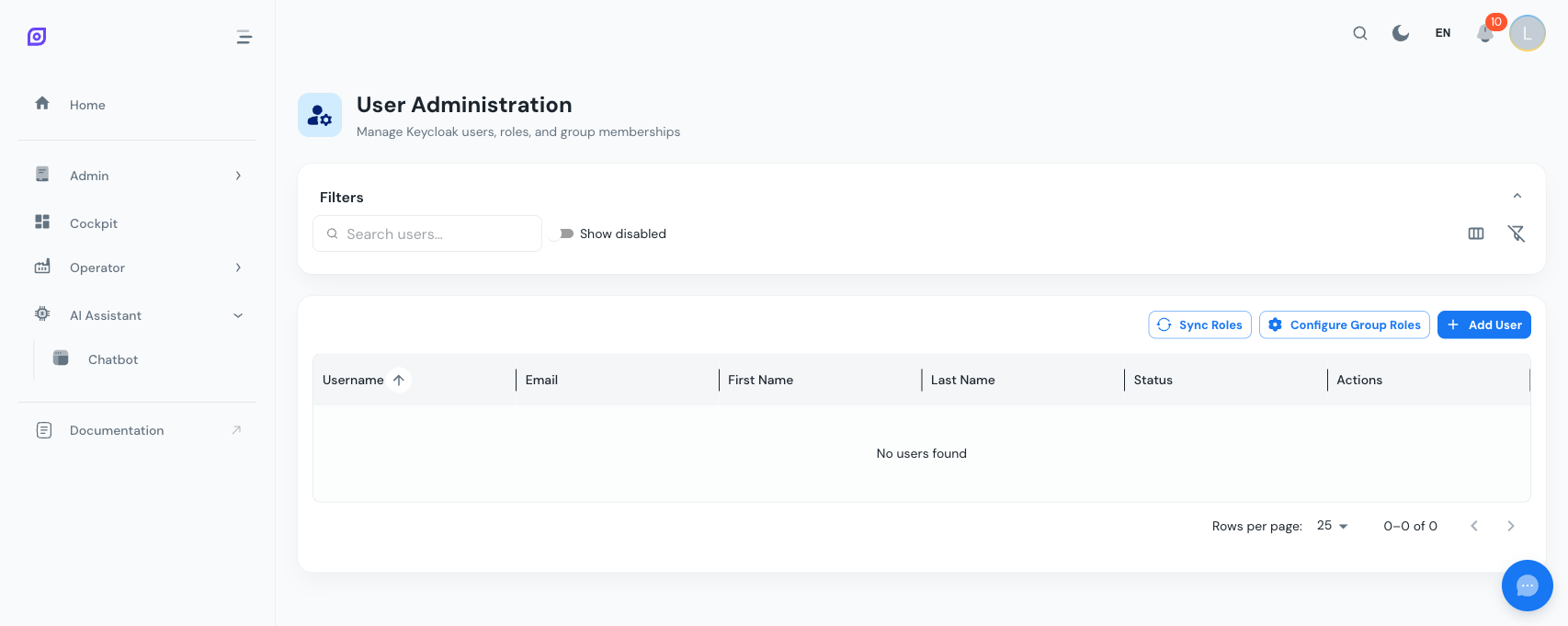
Users grid
| Column | Description |
|---|---|
| Username | Keycloak username (login name) |
| Full name | First name and last name |
| User's email address | |
| Status | Enabled / Disabled |
| Business roles | The assigned role:* business roles (e.g. Operator, Supervisor) |
Per-row actions include Edit, Manage roles, View access, Reset password, and Disable.
Creating a user
- Click Add User in the toolbar
- Fill in username, email, first name, last name
- Set a temporary password — the user is prompted to change it on first login. The form lists the password rules your realm enforces and ticks them off as you type; Save stays disabled until they are all met, so a password Keycloak would refuse can no longer be submitted.
- Assign access (see below)
- Click Save
The account is created in Keycloak and appears in OpSee immediately.
Email addresses
The address is checked for a valid structure — a@a and someone@ are
rejected — but nothing is sent to it and no DNS lookup is made, so internal-only
domains such as admin@plant.local work normally on an isolated network.
The same check applies when editing a user. An account created before this check existed may hold a malformed address; editing anything about that user (even just their name) asks you to correct the address first.
Email verification
OpSee never marks an address verified on its own. What happens depends on whether the Keycloak realm has a mail server configured:
| Install | Result |
|---|---|
| No mail server (the usual case on an isolated network) | The account is created with the address unverified. No verification action is attached — there would be no way to complete it. The user's Profile page shows "Not verified — no mail server configured". |
| Mail server configured | The account is created unverified and Keycloak asks the user to confirm the address at first login. |
Tick Mark email address as verified only when you confirmed the address yourself by some other means. It is recorded in the audit trail against your name, so a later reviewer can see who vouched for it.
Assigning access
Open a user and click Manage roles. Access is granted through three sections of the role picker:
1. Business roles — the normal way to grant access. Tick one or more:
| Business role | Grants (summary) |
|---|---|
| Admin | Everything — every permission and all equipment |
| Operator | View dashboards & data, assign OEE reasons, view orders, edit Kaizen |
| Supervisor | Operator + edit OEE, manage orders/dispatch/schedules/personnel, export |
| Technician | View data + configure equipment/tags/data-sources/calculations, import/export |
| Quality | View data + edit OEE & config, run analysis, export |
| Planner | View data + manage orders, dispatch, schedules, recipes, materials |
2. Permissions (advanced) — grant a single extra perm:* capability beyond
what a role bundles, grouped by area. Expand a permission to see exactly which
endpoints it unlocks. Most users need nothing here.
3. Equipment — tick the sites/lines the user may see (a parent covers all descendants), or tick All equipment to grant everything including equipment added later.
:::info Menu visibility is automatic There are no "menu roles" to assign. A page appears in a user's sidebar when they hold the permission that page requires — which their business role already grants. See Roles and Permissions. :::
Use View access on a user's row to see their fully resolved access (business roles, effective permissions with the role each came from, and equipment scope).
Disabling a user
Users are not permanently deleted (they exist in Keycloak). To revoke access, open the user, toggle Enabled to Off, and save. They can no longer sign in, but their historical data (OEE entries, audit events) is preserved.
Password reset
Open the user, click Reset Password, enter a temporary password, and toggle Require password change on next login to On. The same live rule checklist and strength bar appear here.
Password rules
The rules come from the Keycloak realm, not from OpSee, so the forms can never promise something the server then refuses. OpSee ships with a 12-character minimum plus "must differ from the username"; an administrator can change that in Keycloak and the forms follow immediately, with no OpSee release needed.
Grafana users
Users who need Grafana access require a separate Grafana account — see Grafana Users.
Prerequisites
- Access Control Overview — the full access control model
- Roles and Permissions — the concepts
Next steps
- Grafana Users — manage Grafana-specific access
Related
- Audit Trail — monitor user activity and changes