Access Control
OpSee uses Keycloak as its identity provider. Access Control is where an administrator decides who can see what and do what — from an operator scoped to a single line to a full plant administrator.
Access is built from three things (see Roles and Permissions for the concepts):
- Business roles — pre-packaged bundles of permissions for a job function
(
Admin,Operator,Supervisor,Technician,Quality,Planner,Viewer). - Permissions — the fine-grained
perm:*capabilities a role bundles. - Equipment scope — which equipment's data a user can see.
:::info No groups, no manual sync Access Control is permission-based. The older "menu groups" / "equipment groups" and the manual role-sync step no longer exist — page visibility follows each page's required permission automatically, and Keycloak roles are kept in step by the app in the background. :::
The Access Control pages
| Page | What it does |
|---|---|
| Users | Create/edit users and assign their business roles, permissions, and equipment scope. |
| Permissions | Read-only reference: every permission and exactly which API endpoints it guards. |
| Menu access | Set which permission is required to see each menu item, and toggle visibility. |
| Audit | Who changed what and when. |
| Grafana Users | Keep Grafana access aligned with OpSee. |
Managing users
Navigate to Administration → Access Control → Users.
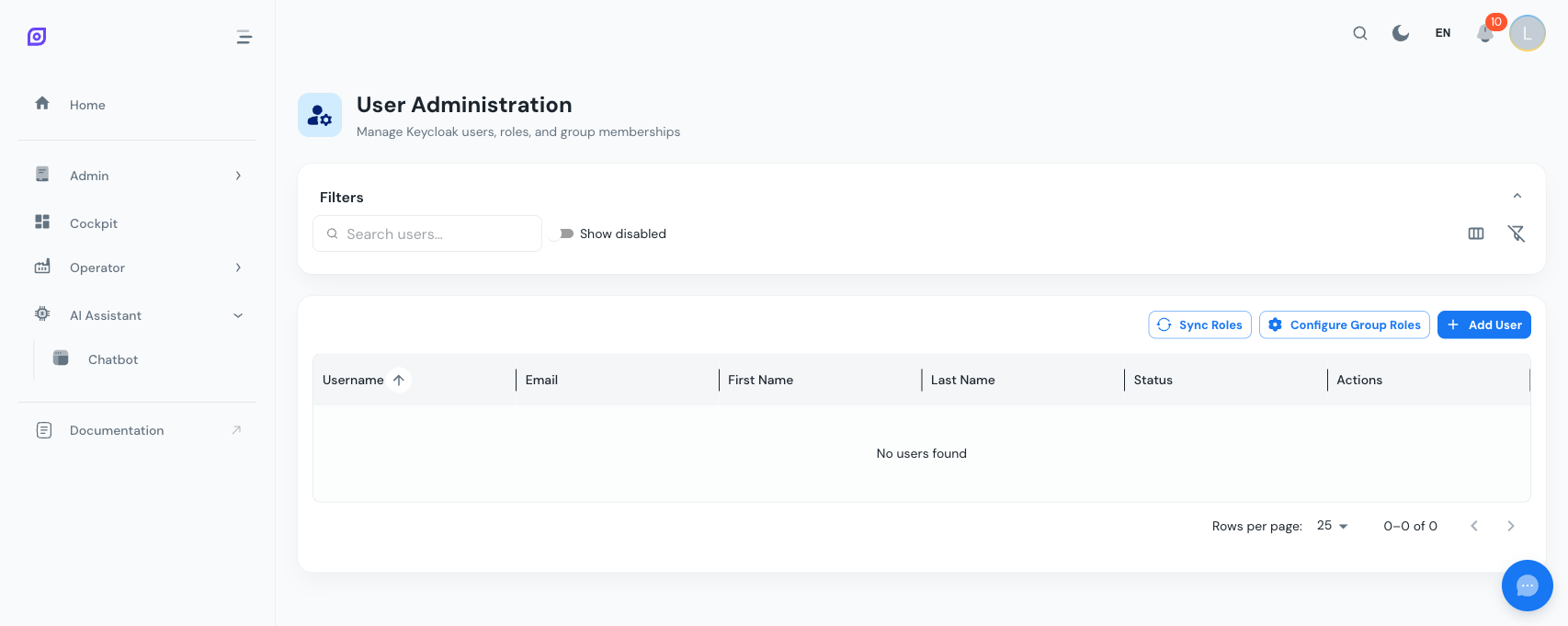
Creating a user
Click Add User and fill in:
| Field | Required | Description |
|---|---|---|
| Username | Yes | Login identifier |
| Yes | User email address | |
| First / last name | No | Display name |
| Password | Yes | Initial password (can be marked temporary) |
| Enabled | Yes | Whether the user can log in |
The account is created in Keycloak and appears in OpSee immediately.
Assigning access
Open a user and use Manage roles to grant access. The role picker has three sections:
- Business roles — tick one or more (
Operator,Supervisor, …). This is how you grant access in almost every case. - Permissions (advanced) — grouped by area, for granting a single extra capability beyond what a role bundles. Each permission can be expanded to show exactly which endpoints it unlocks.
- Equipment — a hierarchical tree of your equipment. Tick the sites/lines the user may see (a parent covers everything beneath it), or tick All equipment to grant everything, including equipment added later.
:::tip Principle of least privilege Start from a single business role plus the narrowest equipment scope that does the job, and add more only when needed. :::
Business roles
Use Manage business roles (toolbar) to review or customize the built-in roles, or author new ones by ticking the permissions they should bundle. The built-in roles are marked managed — editing one makes it custom so the app stops overwriting your changes.
Password management
From a user's row you can reset the password and require a change on next login.
Permissions reference
Administration → Access Control → Permissions lists every permission grouped by area, and — for each one — the exact API endpoints it guards (read live from the running app, so it can never be out of date). Use it to understand what a permission actually unlocks before assigning it.
Menu access
Administration → Access Control → Menu access shows the whole menu as a tree. For each item you can set the permission required to see it and toggle its visibility.
:::info This controls visibility, not the API Menu access governs what appears in the sidebar and in-app navigation. The API itself is protected separately in code — hiding a page here changes what users see, but never weakens the underlying API protection. :::
User profile
Every user manages their own profile from the avatar in the top-right: personal info, avatar, language, timezone, password, and theme. The profile's Roles & Permissions card shows their current business roles, effective permissions, and equipment scope (read-only — users cannot change their own access).
Grafana user sync
Administration → Access Control → Grafana Users manages Grafana integration: view Grafana users and set their Admin/Editor/Viewer role so Grafana access stays aligned with OpSee.
Next steps
- User Management — the Users page in detail
- Audit Trail — track who did what
- Overview — back to Administration overview
Prerequisites
- Admin Overview
- Roles and Permissions — the concepts
Related
- Architecture Overview