Tag Quality
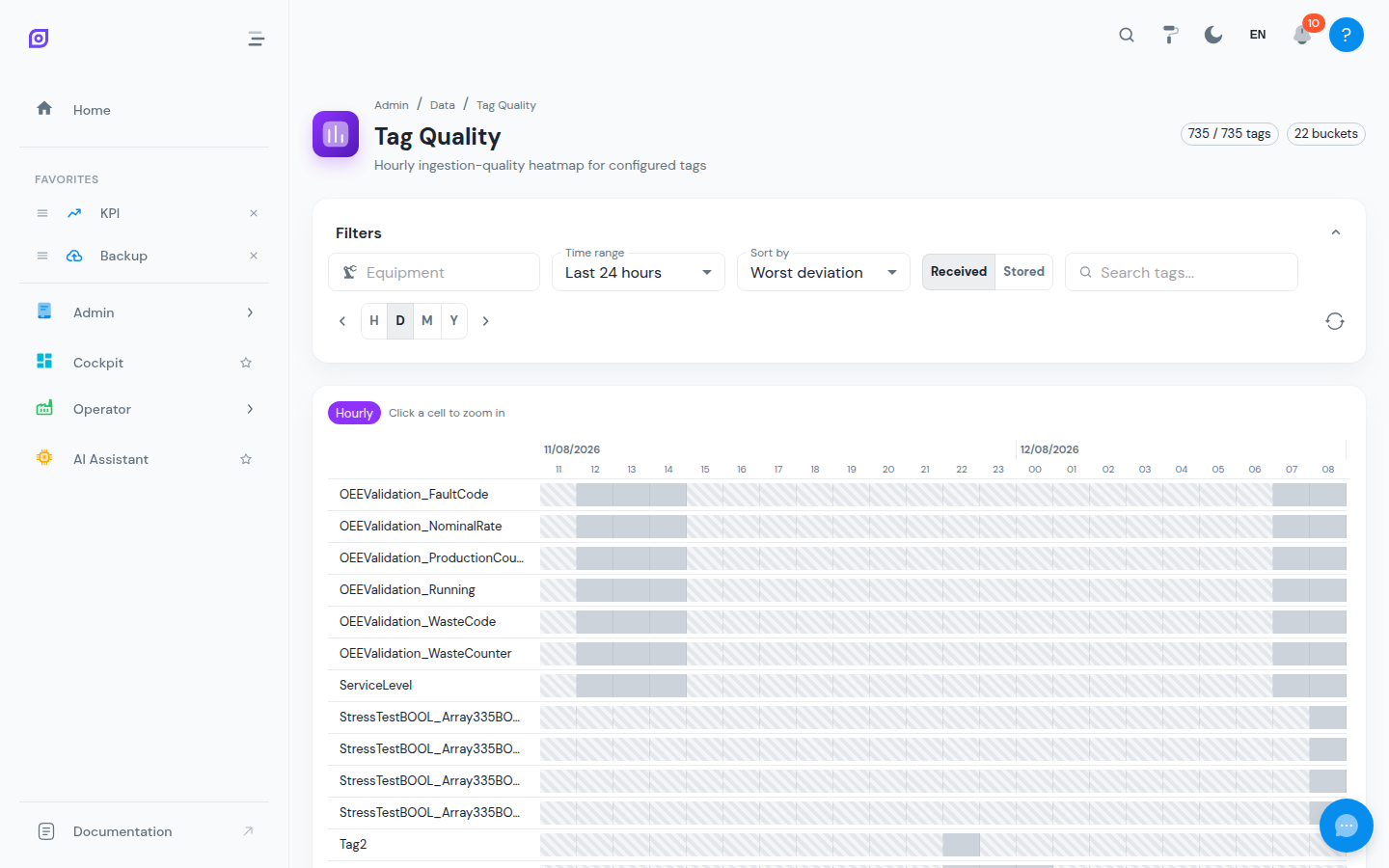
The Tag Quality page is a heatmap of ingestion health for your configured tags. Each row is a tag, each cell a time bucket, and the color tells you instantly whether the tag delivered the amount of data it normally does — catching silent sensors, degraded connections and runaway publishers long before they corrupt trends or OEE figures.
Navigate to Admin → Data → Tag Quality.
How the health check works
For every tag, OpSee maintains a baseline: the expected number of samples per hour, derived from a 7-day rolling median of that tag's own history. Each cell then compares the actual sample count against the baseline:
| Color | Status | Meaning |
|---|---|---|
| 🟩 Green | Healthy | 50–200% of baseline — the tag behaves as usual |
| 🟥 Red | Silent / degraded | Below 50% of baseline — the source is dropping out |
| 🟪 Purple | Noisy / runaway | Above 200% of baseline — the source is flooding |
| ⬛ Black | Zero samples | Nothing arrived in this bucket |
| ⬜ Grey | Insufficient history | Not enough history yet to compute a baseline |
A coarse bucket (e.g. a day) that averages out fine but contains a severely degraded sub-period gets a warning marker, so problems can't hide inside big buckets.
Reading and navigating the heatmap
- Time range: presets (Last 6h / 24h / 7d) or a custom range, with Hourly / Daily / Monthly / Yearly resolution
- Drill down: click any cell to zoom into that period at a finer resolution; Back / Reset to filter range return you up
- Step through time: move the whole window backward/forward with the arrow controls (or ← / → keys; H / D / M / Y set the step size)
- Filter and sort: search by tag name, filter by equipment, and sort by worst deviation (default — problems bubble to the top), alphabetically, or by equipment
- Hover a cell for the details: period, samples vs. baseline, deviation, average value and status
Metrics beyond the baseline
When ingestion-statistics collection is enabled, the Metric toggle recolors the heatmap by:
- Baseline (default) — samples vs. the 7-day baseline, as described above
- Received — raw records seen before deadband filtering
- Stored — values actually written to history (an independent cross-check)
- Filter ratio — the share of raw values dropped by the deadband. A high ratio is normal for stable signals; only ≥99.9% is flagged
Comparing Received vs. Stored separates "the source stopped sending" (Received drops) from "the deadband is swallowing everything" (Received fine, Stored near zero).
If Received / Stored / Filter ratio show as unavailable, ingestion-stats collection is disabled (the default). The baseline metric always works.
What to do when a tag goes red
- Black or red cells on one tag — check the sensor/PLC and the tag's address in Data Tags
- Many tags red on the same equipment — check the connection or the Data Collector serving it
- Purple (runaway) — the source publishes far more than usual; consider a deadband or fix the source
- Verify the recovery in Data Trends once the fix is in
Related pages
- Data Tags: tag configuration, transformations and deadbands
- Data Collectors: remote collector health and buffering
- Data Trends: the underlying time-series data