Discover OpSee in 10 Minutes
Welcome. This tour takes about 10 minutes and gives you the essentials: what OpSee does, what OEE means, and how to read your first dashboard. No prior MES experience required.
:::info What you'll learn
- What a Manufacturing Execution System (MES) is, in plain English
- How OEE is calculated and why it's the gold standard metric
- How to open your first dashboard in OpSee, using Production Line A
- How to read KPI cards, loss charts, and timelines
- What decisions you can make from OEE data :::
What is a MES?
A Manufacturing Execution System is like a fitness tracker for your factory. Just as a fitness tracker monitors your heart rate, steps, and sleep to give you a health score, a MES monitors your production equipment to give you a productivity score.
It tracks three things:
- Was the machine running? Or was it stopped for a breakdown, a changeover, or waiting for material?
- Was it running fast enough? Even when the machine is on, it may run below its designed speed.
- Were the products good? Some pieces may come out defective and need to be scrapped or reworked.
These three questions map directly to a single metric called OEE, Overall Equipment Effectiveness:
OEE = Availability × Performance × Quality
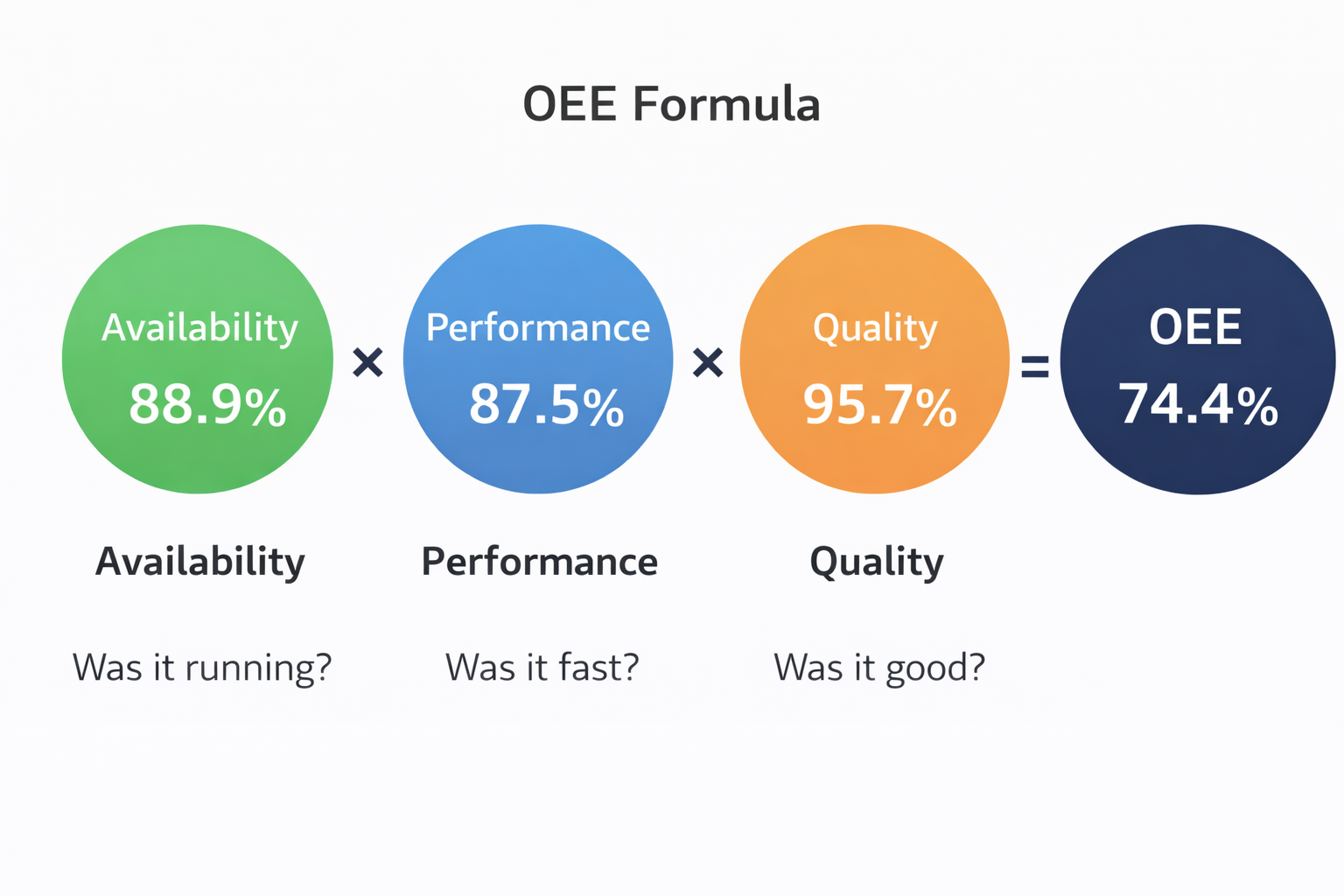
OEE is the standard metric for measuring manufacturing productivity. OpSee is a MES built entirely around OEE: it collects the signals, computes the metric, displays the result, and helps you improve it.
Example: one hour of production
To see OEE in action, here's a fictional example of one hour of production on a packaging line. It gives you a concrete scenario to understand the metrics before looking at a real dashboard in OpSee.
:::note This is an illustrative scenario The numbers below are a teaching example, not live data. When you open OpSee later in this tour, you'll see your own actual production values, which will be different. :::
Imagine the line runs from 10:00 to 11:00 and experiences 3 downtime events:
| Time | Event | Duration | Category |
|---|---|---|---|
| 10:12 | Label jam | 3 min | Minor Stop |
| 10:28 | Recipe change | 12 min | Planned Changeover |
| 10:47 | Belt broken | 8 min | Equipment Failure |
That's 23 minutes of downtime over a 60-minute planned window, leaving 37 minutes of actual run time.
During those 37 minutes, the line produces 68 pieces instead of the ideal 74 (a slight slowdown). Of those 68 pieces, 4 are rejected for quality defects, leaving 64 good pieces.
Calculating OEE
| Factor | Formula | Value |
|---|---|---|
| Availability | 37 min run / 60 min planned | 61.7% |
| Performance | 68 produced / 74 ideal | 91.9% |
| Quality | 64 good / 68 produced | 94.1% |
| OEE | 61.7% × 91.9% × 94.1% | 53.3% |
An OEE of 53.3% means almost half of the production capacity was lost during that hour. World-class OEE is 85%+, and the average manufacturer sits around 60%. This hour has clear room for improvement.
:::tip Why multiply the three factors? Because each loss compounds. If Availability is 80% and Performance is 80%, you might expect 80% productivity, but the reality is 80% × 80% = 64%. A small loss in each area adds up fast. That is why OEE matters: it reveals losses you would not see by looking at each factor alone. :::
See it in OpSee
Time to look at real OEE in your own OpSee installation. The reference for this tour is Production Line A, located at Company > Antwerp > Production Area > Production Line A and pre-configured with your OpSee deployment.
Most of what you need lives under the Operator section of the main navigation menu:

Two views complement each other:
- Operator → Dashboard: your high-level OEE dashboard with live KPI gauges
- Operator → OEE → Downtime operator screen: a detailed breakdown of downtime events, losses, and reasons
Part 1: your live OEE Dashboard
Open Operator → Dashboard from the main menu. You land on the OEE Dashboard, the big-picture view of your production line.
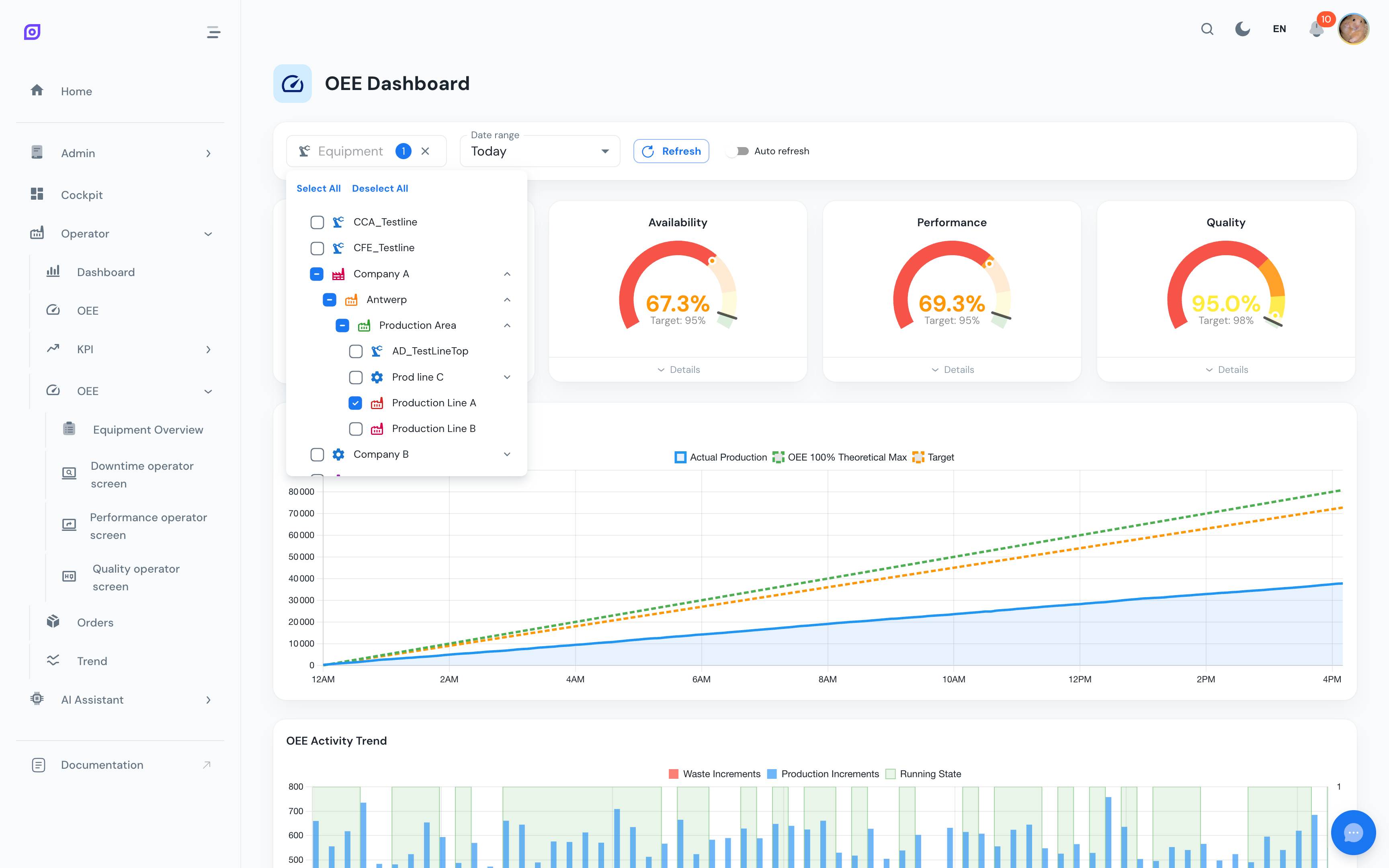
Step 1: select Production Line A
At the top of the dashboard, click the Equipment filter and pick Production Line A from the hierarchy tree (Company > Antwerp > Production Area > Production Line A).
Step 2: pick a time range
Use the Date range selector to choose a window with recent production, for example Today, Last 24 hours, or Last week. The dashboard refreshes with the corresponding data.
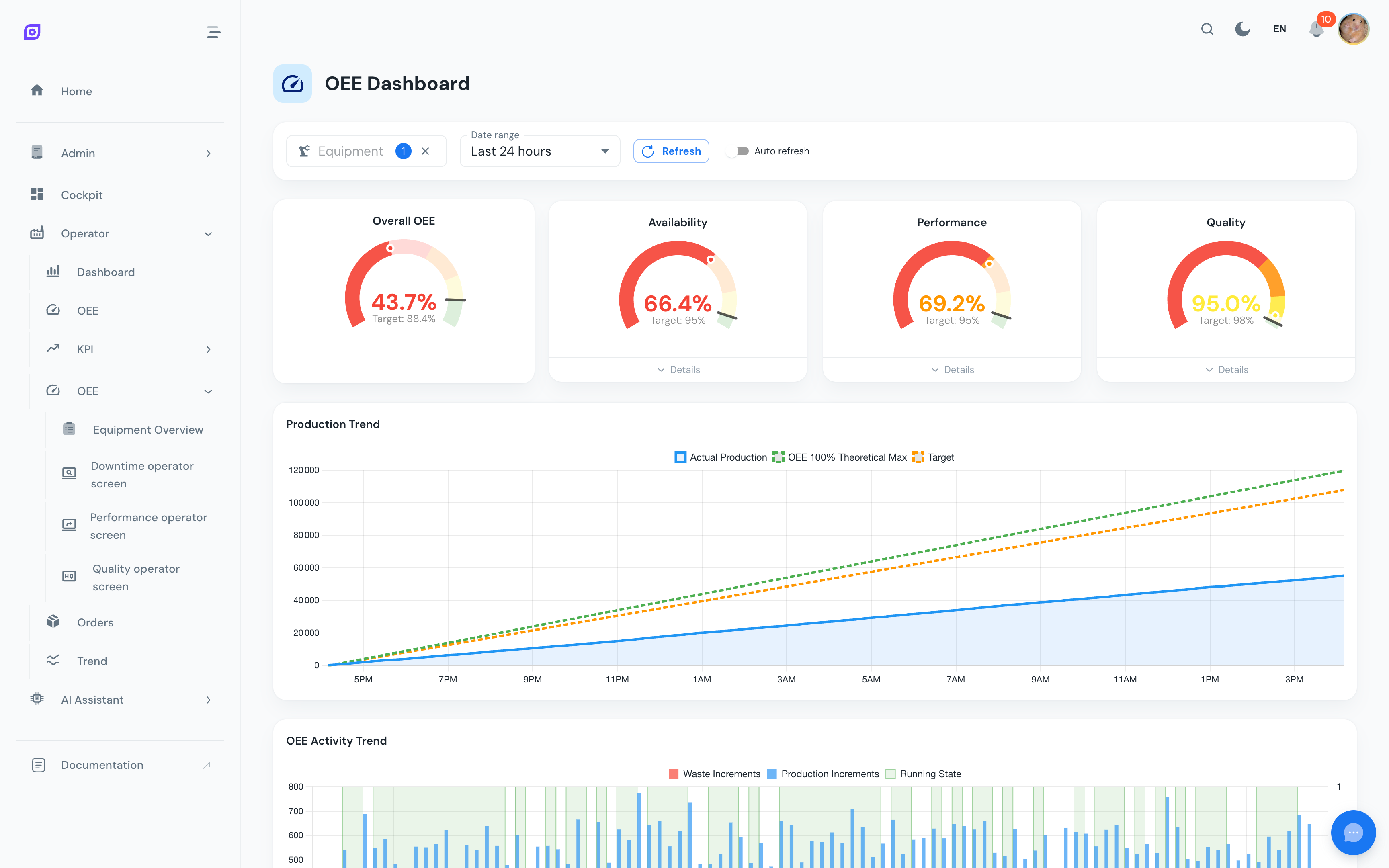
:::note Example from live data The exact values you see depend on your real production. The screenshots on this page are illustrative; use them as a reference for what sections to expect, not for specific numbers. :::
Step 3: read the KPI gauges
The four radial gauges at the top summarize the selected window at a glance:

| Gauge | Meaning |
|---|---|
| Overall OEE | Overall score: how much of your planned production capacity became good products |
| Availability | Share of planned time the line was actually running |
| Performance | How close to top speed the line ran when it was up |
| Quality | Share of produced pieces that passed quality checks |
Each gauge also shows a Target (for example "Target: 95%"). The coloured arc compares the current value against the target, giving a quick visual signal of how far off you are.
A single glance at these four numbers tells you what went wrong (low Availability? Performance? Quality?) without making you dig through every downtime event.
Below the gauges, two more charts track performance over time:
- Production Trend: your actual production compared to theoretical maximum and target
- OEE Activity Trend: running state and waste increments across the time window
Part 2: digging into downtime
The OEE Dashboard tells you how the line performed. To understand why, open Operator → OEE → Downtime operator screen. This view focuses entirely on downtime analysis.
Top Loss Types & Top Downtime Reasons
Two charts break down what caused the losses:
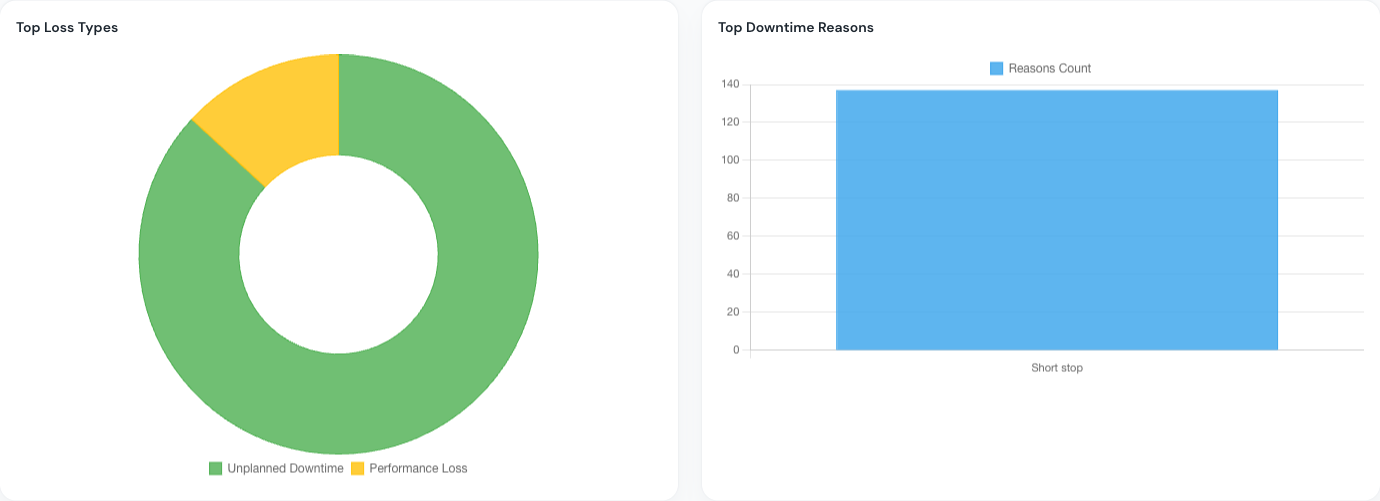
- Top Loss Types doughnut: groups downtime into categories (Unplanned Downtime, Planned Downtime, Performance Loss, Quality Loss, No Production Planned). At a glance you see which category hurt you most.
- Top Downtime Reasons bar chart: ranks the individual reasons from longest to shortest. This ranking is called a Pareto analysis. Continuous improvement teams use it to prioritize: fix the biggest losses first, and you recover the most capacity with the least effort.
:::tip The Pareto principle at work In most factories, fixing the top 2–3 reasons often recovers 80% of lost time. You don't need to solve everything, just the biggest losses. :::
Downtime Timeline
Below the charts, the Downtime Timeline shows the selected window chronologically as horizontal bars, one row per equipment. Each bar represents a period, color-coded by state:
- 🟢 Green: running (producing good parts)
- 🔴 Red: unplanned stop (breakdowns, jams)
- 🔵 Blue: planned stop (changeovers, cleaning)
- 🟡 Yellow: minor stop (brief interruptions under 2 minutes)
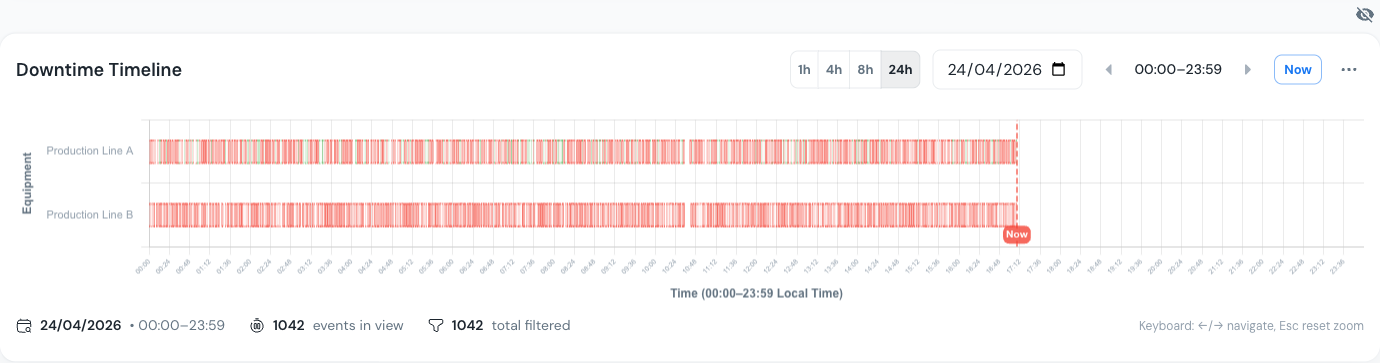
Click on any colored segment to see the details of that event: start/end time, duration, reason, loss category, and whether an operator has validated it. Use the 1h / 4h / 8h / 24h zoom buttons or the date picker to focus on a specific period.
Below the timeline, the Downtime Events table lists every event individually, which helps when you want to bulk-validate reasons or export data.
:::warning Validation matters Every downtime event should be validated: an operator logs the reason for each stop as it happens. Without that step, the OEE numbers mean nothing. The Validation Rate KPI at the top of the page tells you what share of events has a reason assigned. :::
What would you improve?
Back to the teaching example (Availability 61.7%, Performance 91.9%, Quality 94.1%, OEE 53.3%). If you were the production manager, where would you invest?
- Belt broke for 8 minutes: is this a recurring failure? Should you schedule preventive maintenance? Maybe the belt is aging and needs replacement before it fails again.
- Changeover took 12 minutes: could SMED methodology reduce it to 5 minutes? That alone would recover 7 minutes of production time, almost 12% of the hour.
- 4 rejected pieces: is it a calibration issue? A raw material defect? Can an upstream quality check catch it earlier?
This is how OEE drives decisions: from specific data, not intuition. You know exactly where the time went, and you can calculate the ROI of each improvement before you invest.
In our example, addressing the belt failure and the changeover alone would lift OEE from 53.3% to over 80%, a ~28-point gain from just two fixes (Availability climbs from 61.7% to 95%, while Performance and Quality stay flat).
The bigger picture
A single hour on a single line is just the starting point. OEE becomes more useful as you accumulate data over time and across equipment:
- Over days and weeks, patterns emerge. Are Monday mornings consistently worse? Does the night shift outperform the day shift? Is there a correlation between a specific recipe and higher scrap rates?
- Across equipment, comparisons become actionable. Is Line B doing better than Line A? If so, what's different: maintenance schedule, operator training, raw material supplier?
- The Cockpit lets you build custom dashboards for any view: one screen for the shift supervisor, another for the plant manager, a third for the maintenance team. Each role sees the data that matters to them.
Behind the scenes, the data flows through a straightforward pipeline:
Sensors on the shop floor send signals (machine running, piece produced, piece rejected). Those signals are collected, stored in a time-series database, and made available through dashboards. OpSee handles the full chain, from raw sensor signal to dashboard.
Next steps
With the basics covered, here is where to go next depending on your goals:
| Your goal | Where to go |
|---|---|
| Understand OEE theory in depth | OEE Fundamentals |
| Learn the equipment hierarchy (ISA-95) | Equipment Model |
| Build your own Cockpit dashboard | Cockpit Overview |
| Set up your plant equipment | Equipment |
| Configure OEE tracking | OEE Configuration |
| Understand the full architecture | Architecture |
Related
- OEE Fundamentals: the theory behind every metric in this tour
- Cockpit Overview: build your first custom dashboard
- Glossary: definitions of every key term used in OpSee