Kaizen Board
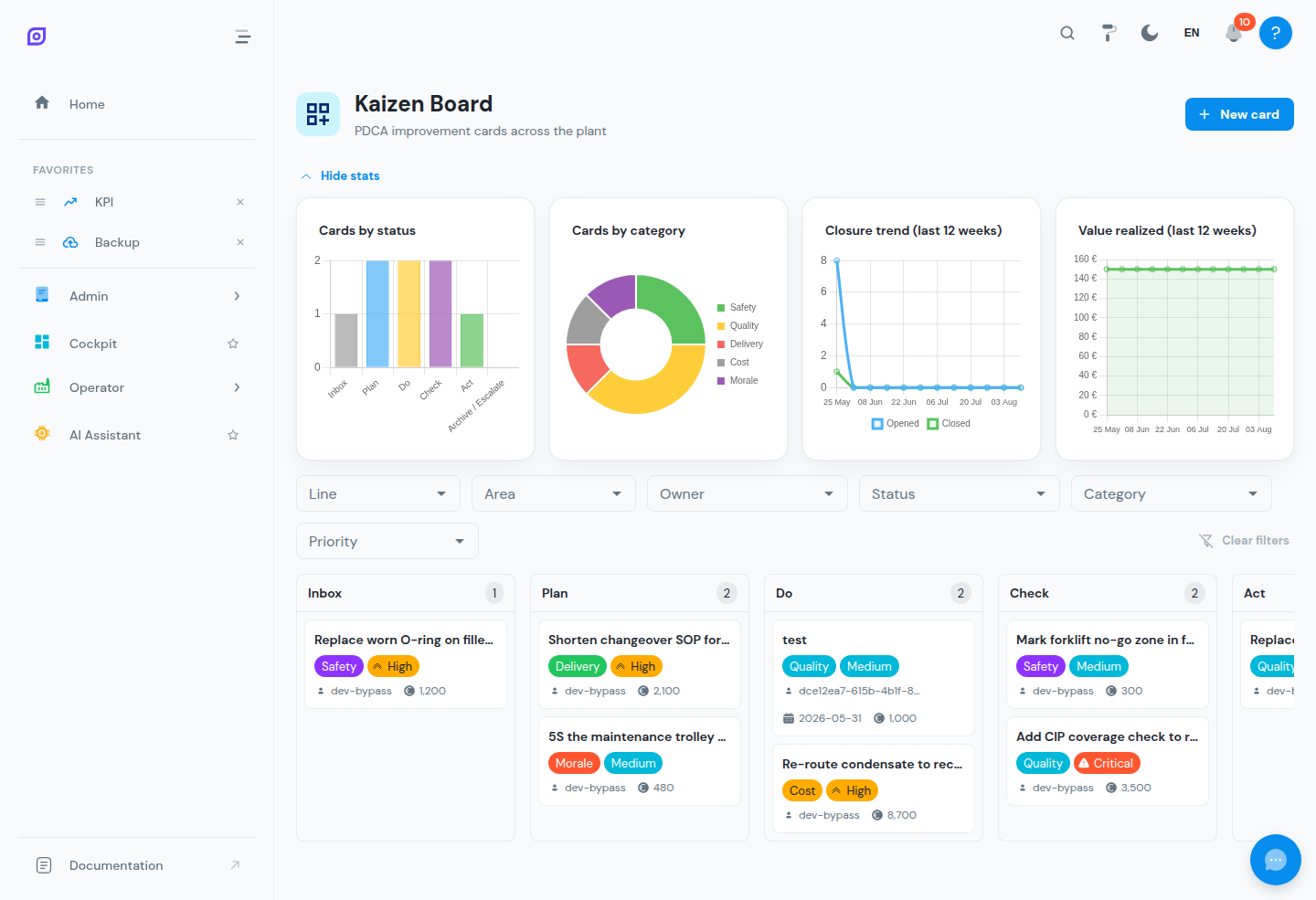
The Kaizen Board is OpSee's continuous-improvement workspace. It captures improvement ideas as cards and moves them through the PDCA cycle (Plan → Do → Check → Act) on a drag-and-drop Kanban board, so shop-floor ideas don't get lost and their realized value stays visible.
Core concepts
The PDCA columns
Every card lives in exactly one column:
| Column | Meaning |
|---|---|
| Inbox | Newly captured ideas, not yet evaluated |
| Plan | The improvement is being analyzed and an action is planned |
| Do | The planned action is being executed |
| Check | Results are being verified against the expectation |
| Act | The improvement is standardized (or the next iteration starts) |
| Archive / Escalate | Closed cards — either done and archived, or escalated outside the board |
Drag a card between columns to move it through the cycle. The move is saved immediately; if it fails (for example due to a lost connection), the card snaps back and a "Move failed — reverted" message appears.
SQDCM categories
Cards are classified using the standard SQDCM lens:
- Safety
- Quality
- Delivery
- Cost
- Morale
Categories drive the board's statistics and make it easy to see where improvement effort is going.
Card anatomy
Each card carries:
| Field | Description |
|---|---|
| Title / Description | What the improvement is about |
| Category | One of the SQDCM categories |
| Priority | Low, Medium, High or Critical |
| Owner | The user responsible (defaults to the creator when left empty) |
| Due date | Optional target date |
| Value (€) | Estimated or realized value of the improvement |
| Line | The production line the card belongs to (ISA-88 process cell equipment) |
| Area | Optional narrower area within the line |
Working with cards
Creating a card
Click New card, fill in at least a title, category and line, and click Create. Leave the owner empty to assign the card to yourself.
The line picker lists equipment configured at ISA-88 level process cell. If the list is empty, ask an administrator to add your lines under Equipment.
Card details, comments and history
Click a card to open its detail dialog with three tabs:
- Details — edit any field, or delete the card
- Comments — discuss the card; comments can be removed by their author
- History — an automatic audit trail of every creation, status change, field edit and comment
Filtering the board
The filter bar narrows the board by Line, Area, Owner, Status, Category and Priority. Filters are kept in the page URL, so a filtered view can be bookmarked or shared with a colleague. The board shows up to the 100 most recent cards.
Statistics
Click Show stats to open the analytics panel:
- Cards by status — where work currently sits in the PDCA cycle
- Cards by category — the SQDCM distribution
- Closure trend (last 12 weeks) — cards opened vs. closed per week
- Value realized (last 12 weeks) — weekly and cumulative € value of closed cards
Use the closure trend to check the improvement pipeline is flowing (cards should not pile up in Inbox), and the value chart to communicate the program's impact.
Permissions and licensing
- Viewing the board requires the
perm:kaizen:readpermission; creating, editing, moving and commenting requireperm:kaizen:write. - The board also respects equipment scope — you only see cards for lines you have access to.
- The Kaizen Board is part of the Kaizen & Gantt foundation module of your OpSee licence (see Licensing).
Related pages
- Production Planning: the Gantt scheduling side of the Kaizen & Gantt module
- Downtime Operator Screen: a common source of improvement ideas
- Roles and Permissions