Remote Collectors
A remote collector is a small program that runs on an edge PC at a plant site, collects OPC-UA and MQTT data locally, buffers it on disk, and forwards it to a central OpSee running in the cloud or on a VM. You manage the whole fleet from the central OpSee — enrollment, data-source assignment, status, and version — without ever opening an inbound port at the site.
When to use a collector
Use a remote collector when the data sources live somewhere the central OpSee cannot reach directly:
- Multi-site. One central OpSee, several plants. Each site runs its own collector.
- Unreliable links. The collector keeps recording during a network outage and replays everything when the link returns — no data loss.
- Locked-down networks. The collector only makes outbound HTTPS connections to the central OpSee. No inbound port, no VPN required for the data path.
If your OPC-UA servers and MQTT brokers are already reachable from the central OpSee, you do not need a collector — configure them directly in OpSee under Admin → Data and feed them into Data Tags. A server with no collector assigned is collected centrally, exactly as before.
How it works
        PLANT SITE (edge PC)                         CLOUD / VM (central OpSee)
┌──────────────────────────────────┐             ┌──────────────────────────────┐
│  opsee-collector (1 container)   │   HTTPS      │  nginx (443)                 │
│   ├─ OPC-UA + MQTT collection    │  outbound    │   └─ FastAPI                 │
│   ├─ disk buffer (store & fwd)   ├─────────────►│       ├─ /api/edge/ingest    │
│   └─ uploader + config poller    │   batches    │       ├─ /api/edge/config    │
└──────────────────────────────────┘             │       └─ /api/edge/heartbeat │
     PLCs / OPC-UA / local MQTT                   └──────────────────────────────┘
- Data plane. The collector writes every value to a local SQLite buffer, then uploads compressed batches to the central OpSee. Replays after an outage are de-duplicated automatically, so a reconnect never creates duplicate history.
- Control plane. The collector polls the central OpSee for its configuration (which servers and tags it owns) and sends a heartbeat with its status. Nothing connects to the collector.
- Identity. Each collector authenticates with its own credential, issued once at enrollment and revocable at any time.
Managing collectors
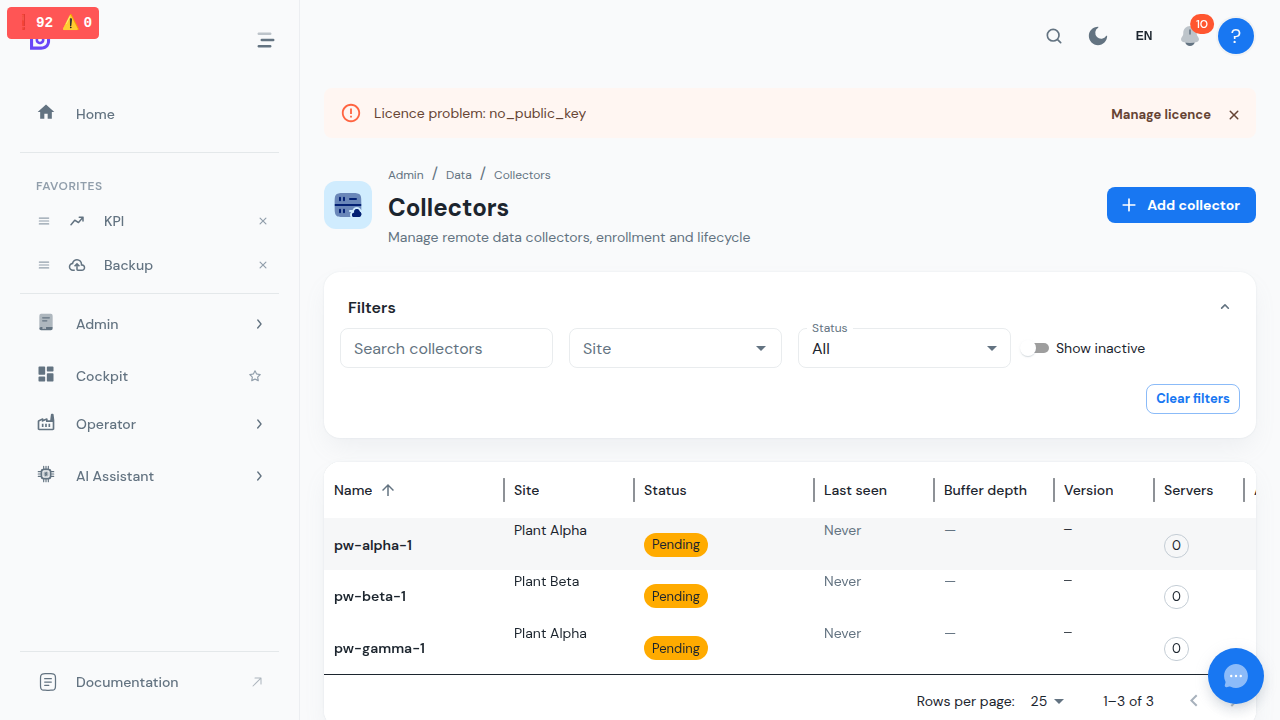
Navigate to Admin → Data → Collectors. The grid lists every collector with its site, status, last-seen time, buffer depth, version, and number of assigned servers. The list refreshes every 30 seconds.
Use the Site and Status filters to narrow a large fleet, and the search box to find a collector by name.
| Status | Meaning |
|---|---|
| Pending | Created in OpSee, waiting for the edge box to enroll with its token. |
| Enrolled | Active. A green dot means the collector has sent a heartbeat recently; grey means it has gone quiet. |
| Revoked | Credential invalidated. The collector can no longer connect until you issue a new token. |
Enrolling a collector
Enrollment is a two-step handshake so the long-lived credential never travels by email or chat.
-
Click + Add collector, give it a name and optional site label, and save.
-
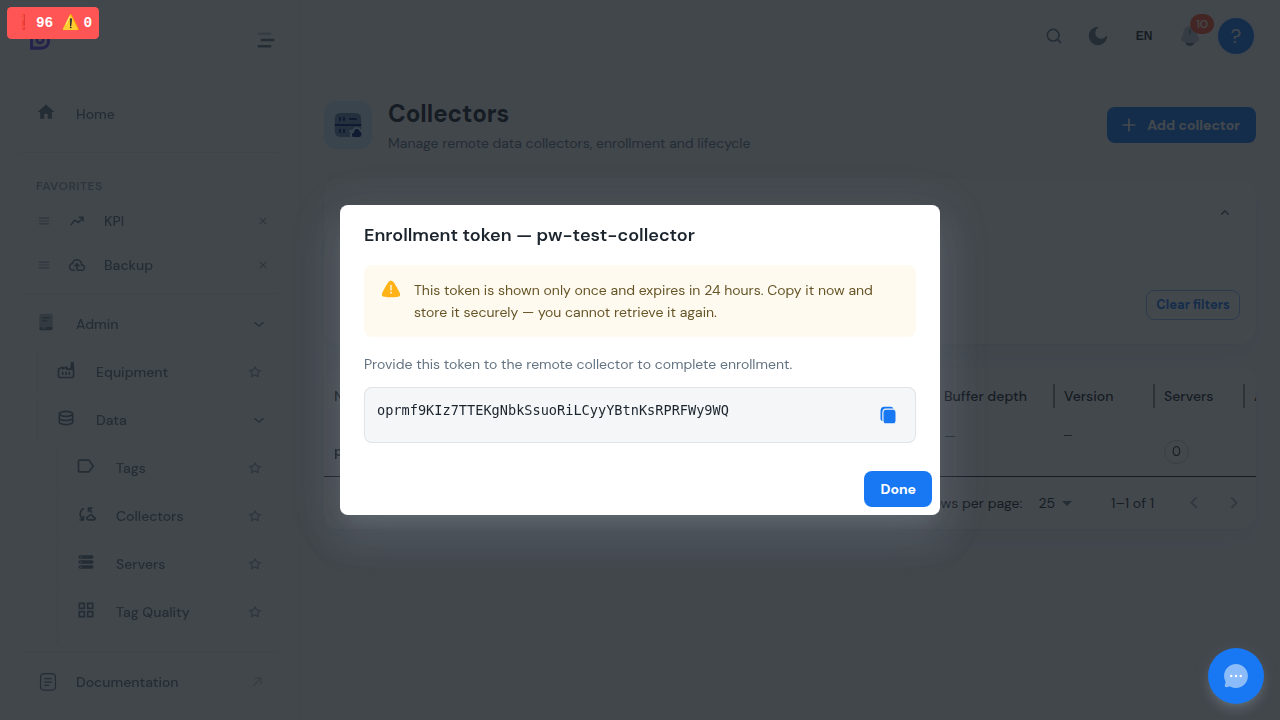
OpSee shows a one-time enrollment token. Copy it now — it is shown only once and expires in 24 hours.
-
On the edge PC, run the collector installer with the central URL and this token (see Installing a collector). On first boot the collector exchanges the token for its own API key and the status flips to Enrolled.
Assigning data sources
A collector only collects the servers you assign to it.
-
On a collector row, click Manage servers.
-
Select the OPC-UA / MQTT servers this collector should own.
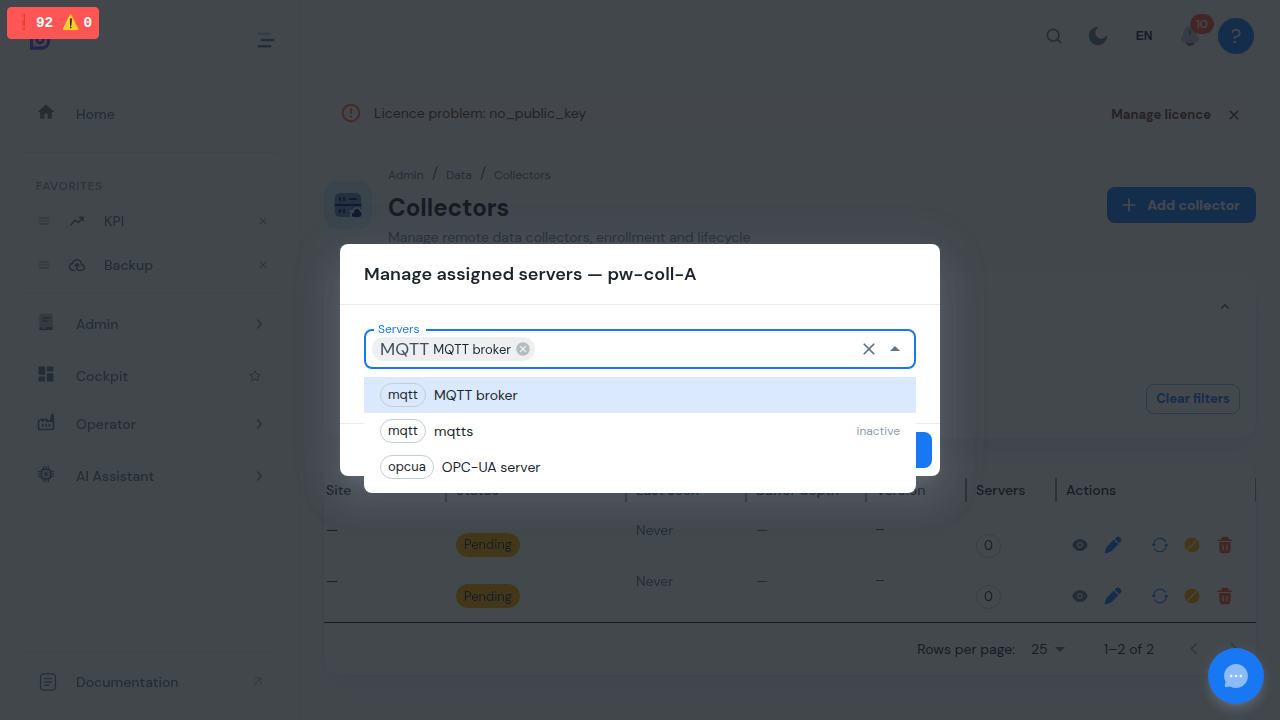
A server already assigned to another collector is shown disabled with its current owner — OpSee never silently steals a server from one collector to another. To move a server, unassign it from its current collector first.
You can also set the collector per server: open the server in Admin → Data → Servers and pick it in the Collector field of the edit dialog (or Central to hand it back). This needs the perm:collectors:admin permission. Picking a collector there is an explicit reassignment, so it moves the server even if another collector had it.
Monitoring the buffer
The Buffer depth column shows how many readings are waiting on the edge box to be uploaded. A small, fluctuating value is normal. A large or steadily growing value means the collector cannot reach the central OpSee — it keeps buffering, but you should investigate the link. When any collector crosses the high-watermark, a warning banner appears above the grid naming the affected collectors.
Tuning a collector from the UI
Edit a collector and open Advanced settings to override its runtime tuning per collector — no SSH, no restart:
| Setting | Default | What it controls |
|---|---|---|
| Buffer max rows | 1,000,000 | How many readings the offline buffer holds before evicting the oldest. Size it to the outage you want to survive: capacity ÷ ingest rate = hours covered. |
| Upload batch rows | 5,000 | Readings per upload request. |
| Upload interval | 5 s | How often the buffer is drained. |
| Heartbeat interval | 30 s | Status/lease cadence. |
| Config poll interval | 30 s | How often the collector checks for configuration changes. |
| Role fallback | 90 s | How long heartbeats must fail before a redundancy peer forces itself active. |
Leave a field blank to use the default. Changes reach the collector within one config poll (~30 seconds) and apply live. The detail dialog shows a collector's active overrides as chips.
A UI override takes precedence over the corresponding OPSEE_* variable in the edge box's .env — if an .env edit appears to have no effect, check the collector's Advanced settings for an override.
Checking versions
The Version column shows the software version each collector reports. A collector running an older version than the central OpSee is flagged with a warning chip and tooltip — use it to spot edge boxes that need upgrading. Collectors running an unknown or development build are not flagged.
Rotating credentials and revoking
- Regenerate token issues a new enrollment token and invalidates the collector's current key — the collector must re-enroll with the new token. Use this to rotate a credential or recover a box whose key was lost.
- Revoke immediately disables the collector and invalidates its credentials. This cannot be undone; the collector must be re-enrolled to come back.
You cannot delete a collector while servers are still assigned to it — unassign them first.
Installing a collector
The collector ships as a small offline bundle, separate from the full edge install. The walkthrough below takes a fresh VM to a collecting state in four stages.
Prerequisites on the collector machine
- Docker 20.10+ with the compose plugin — on a fresh Debian/Ubuntu machine,
wget -qO- https://get.docker.com | shinstalls both. A Proxmox LXC container works too (nesting enabled). - ~1 GB RAM and a small disk for the buffer (512 MB is enough for a lab test; give it 1 GB before real collection load)
- Outbound HTTPS (443) to the central OpSee — that is the only connectivity needed; no inbound ports, no VPN
- Network reach to the plant's OPC-UA servers / MQTT brokers it will collect
Step 1 — Create the collector and copy its token (OpSee UI)
- Go to Admin → Data → Collectors → + Add collector, give it a name and optional site label, and save.
- Copy the one-time enrollment token from the dialog — it is shown only once and expires in 24 hours.
Step 2 — Build the bundle
On a machine that has the collector image (a host logged into the image registry for a published release, or your central server, which builds the image locally):
bash infra/scripts/package-collector.sh <version>
# produces /tmp/opsee-collector-<version>.tar.gz
:::note Building from a not-yet-released version
When the code you want predates a published release, skip the registry with one of two flags. From a checkout, --build builds the image straight from the working tree (backend/FastApi); from a machine that already holds the image, --image tags that local image as the expected name:
bash infra/scripts/package-collector.sh dev --build
# or, from an existing local image (e.g. the central server's locally built one):
bash infra/scripts/package-collector.sh dev --image infra-fastapi:latest
Both skip the GHCR pull. The summary line reports the image source (built-from-source@<sha> or local-image <name>). --build and --image are mutually exclusive.
:::
Step 3 — Install on the collector machine
Copy the bundle over, extract, and run the installer with the central URL and the token from Step 1:
scp central:/tmp/opsee-collector-<version>.tar.gz .
tar xzf opsee-collector-<version>.tar.gz && cd opsee-collector-<version>
sudo OPSEE_CENTRAL_URL=https://opsee.example.com \
     OPSEE_ENROLLMENT_TOKEN=<token> bash install.sh
The installer verifies the bundle checksums, loads the image, writes the configuration (.env, mode 600), starts the container, and waits until the collector reports healthy. You can check it locally at any time:
curl -s http://127.0.0.1:8099/health
The collector's buffer and credentials live on a named Docker volume, so they survive restarts and upgrades.
Step 4 — Verify and assign
- Back in Admin → Data → Collectors, the collector flips to Enrolled with a green online dot within about 30 seconds.
- Use Manage servers to assign the OPC-UA / MQTT servers it should own — configure their addresses as reachable from the collector machine, not from the central.
- Within one config poll (~30 s) the collector connects and data flows into the same tags and trends as central collection. The central OpSee stops collecting any server you assign.
Troubleshooting a first install
- Stays Pending — the enrollment token was wrong, expired, or already consumed. Regenerate one with the refresh icon in the row's action buttons, update
OPSEE_ENROLLMENT_TOKENin the deployment's.env, and recreate the container (docker compose -f docker-compose.collector.yml up -d --force-recreate). - Enrolls but shows offline — check the machine's outbound HTTPS to the central (
curl -s -o /dev/null -w "%{http_code}" https://your-opsee/api/healthfrom the collector host). - Crash-loop with
PermissionErroron/data— the data volume isn't writable by the container's non-root user. Current bundles prevent this (the installer initializes the volume ownership, and the collector refuses to enroll before it can persist credentials — your token stays valid). On a bundle that predates this fix:docker compose -f docker-compose.collector.yml run --rm --user 0 --entrypoint chown collector -R app:app /data, then regenerate the token and recreate the container. - Re-pointing a collector at a different central — a collector's credentials belong to the central that enrolled it. Edit
OPSEE_CENTRAL_URLand a freshOPSEE_ENROLLMENT_TOKEN(from the new central) in.env, delete the old credentials file (docker compose -f docker-compose.collector.yml run --rm --entrypoint rm collector -f /data/collector_credentials.json), and recreate the container — it enrolls against the new central. The buffer is kept.
The full operator guide — buffer-sizing options, upgrade and rollback, credential rotation, and the WAN-outage acceptance test — is in infra/scripts/collector-runbook.md in the OpSee distribution.
Upgrading a collector
Collectors are upgraded with a small image-only bundle:
bash infra/scripts/package-collector-update.sh # /tmp/opsee-collector-update-<version>.tar.gz
Copy it to the edge PC and run the included update.sh. It loads the new image and recreates the collector container; the buffer and credentials survive because they live on the /data volume. After the upgrade the collector reports its new version, and the warning chip in the Version column clears.
Optional remote access
The data path needs no inbound connectivity. For occasional remote maintenance (SSH onto the edge box), you can optionally install a mesh-VPN agent such as Tailscale, ZeroTier, or WireGuard on the collector host — it dials out to your private network so ops can reach the box with no public exposure. This is off by default and the data plane never depends on it — see the "Optional remote ops access" section of the collector runbook for the host-level install steps.
Related
- Data Tags — configure the tags a collector reads.
- Data Trends — view the history a collector forwards.