Production Planning
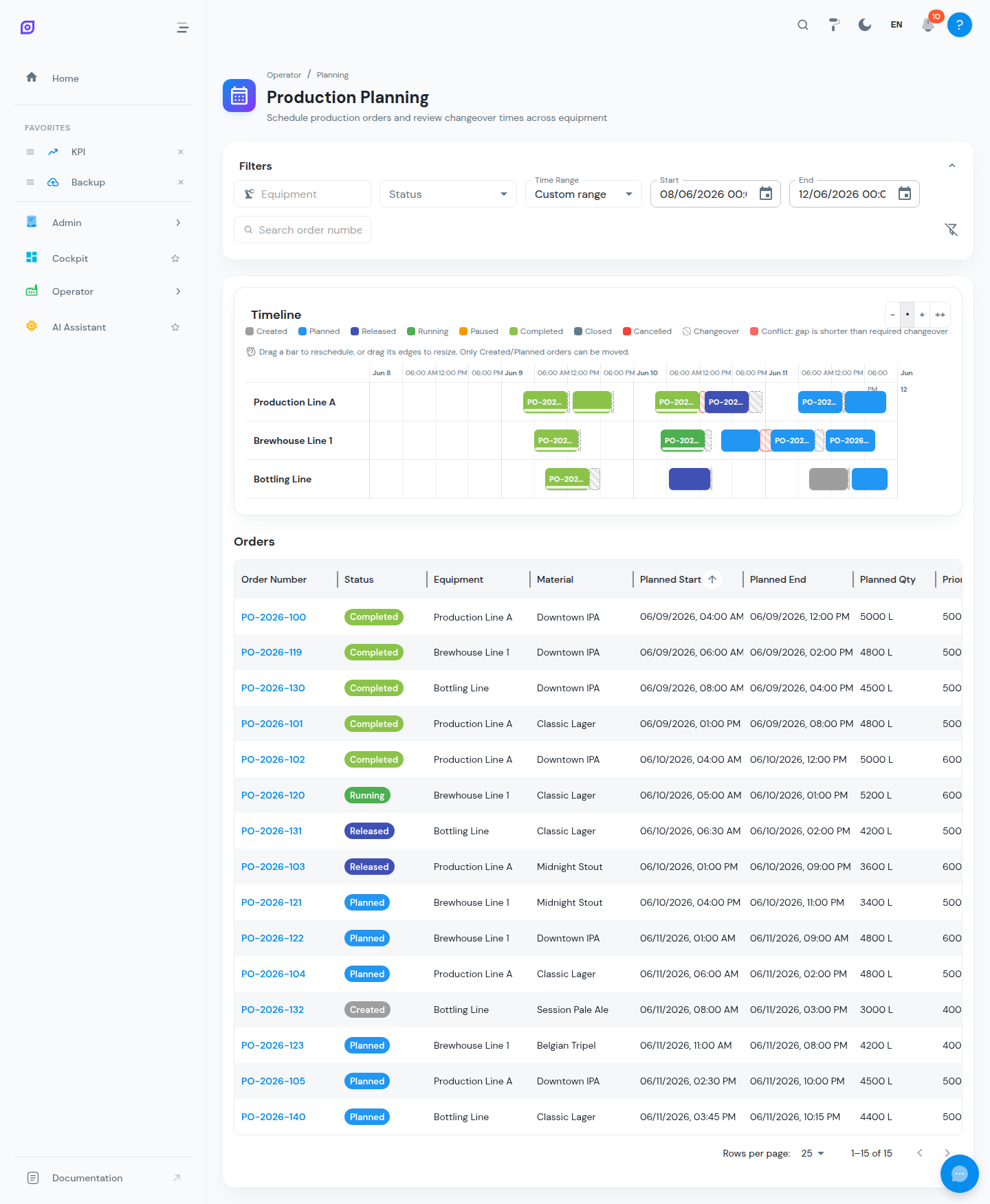
Production Planning shows your production orders on a Gantt timeline, one lane per equipment, so planners can sequence work, spot conflicts and review changeover times between consecutive orders — and reschedule by simply dragging the bars.
The planning view
The page has two synchronized sections:
- Timeline — the Gantt chart: each equipment is a lane, each order a bar positioned by its planned start/end. A Now marker shows the current time.
- Orders — a data grid of the same orders with their full details (order number, status, material, planned quantity, planned start/end, sequence).
Filters and time range
- Time Range: presets (Today, Next 24 hours, This week, Next 7 days, Next 14 days) or a custom start/end
- Equipment: select which lines appear as lanes
- Status: show all statuses or narrow down (e.g. only Created and Planned)
On small screens the timeline is hidden ("The planning timeline is available on larger screens") — the order grid below remains fully usable.
Rescheduling by drag and drop
Drag an order bar to move it in time, or drag its edges to shorten/lengthen it. The change is applied optimistically and saved to the server; when saving fails — for instance because someone else changed the order in the meantime — the bar reverts and a "Reschedule failed" message appears.
Only orders in the Created or Planned status can be moved. Once an order is Released or Running, its schedule is fixed on this screen — manage it from Production Execution instead.
Changeover visibility
When two orders follow each other on the same equipment, the gap between them is compared against the changeover rule for that material pair (from material A to material B):
| Indicator | Meaning |
|---|---|
| Changeover time | The required changeover minutes for the From → To material pair |
| CIP | Whether the changeover includes a clean-in-place, and its duration |
| Gap | The actual planned time between the two orders |
| Conflict | The gap is shorter than the required changeover — the plan is not feasible as scheduled |
| No changeover rule defined | No rule exists for this material pair; no feasibility check is possible |
Hover a changeover marker between two bars to see the From/To materials, required time and CIP details. Resolve conflicts by dragging one of the orders until the gap covers the required changeover.
Typical planning workflow
- Create orders in Production Orders (status Created)
- Open Production Planning, choose your time window and equipment
- Drag orders into sequence, respecting changeover requirements
- Transition the orders to Planned and then Released so operators can start them on the Production Execution screen
Permissions and licensing
- Viewing requires production read access; rescheduling requires the production-order write permission (
perm:production-orders:write). - You only see and plan orders for equipment within your scope.
- Planning is part of the Production feature module of your OpSee licence, enabled per equipment (see Licensing).
Related pages
- Production Orders: create and manage the orders you schedule here
- Production Execution: where operators start/pause/complete the released orders
- Material: materials and the changeover rules between them